

completed order #5CQFGUXJX, and a session you can watch live in Kernel’s dashboard while it happens.
Before you start
A real purchase needs production credentials. The sandbox recognises the card request and pauses it, but no approval link is sent and nothing is charged. Run the sandbox first to see the pause, then switch the credentials.
- The Kernel setup from Kernel: a Kernel API key, and
@onkernel/sdk,@agent-cards/sdkandplaywright-coreinstalled.@agent-cards/sdkis the SDK’s current name;@agent-cards/checkoutstill installs and re-exports it. - An Agentcard organization with production credentials (
client_idandclient_secret), and a user of that organization with a card in the Vault. Adding a card gets you both; the user’suser_idis what you pass to the SDK. - A Shopify store with guest checkout and something cheap. The run below uses The Good and the Beautiful, a homeschool publisher, and its $0.99 High School Biology Answer Key (PDF): a digital product, so nothing ships and the checkout asks for an email and a billing address only.
- The user’s phone within reach. The approval link is theirs to open.
Tools

Kernel

Agentcard Vault

Shopify checkout
How it works
1. Open the checkout
Kernel gives you a Chromium with a CDP address; Playwright drives it like a local browser. Two things matter before the agent types anything. Create the context with service workers blocked, because a service worker owns requests Playwright cannot see, and the card request is one of them. And dismiss the store’s cookie notice yourself, because it sits over the checkout button.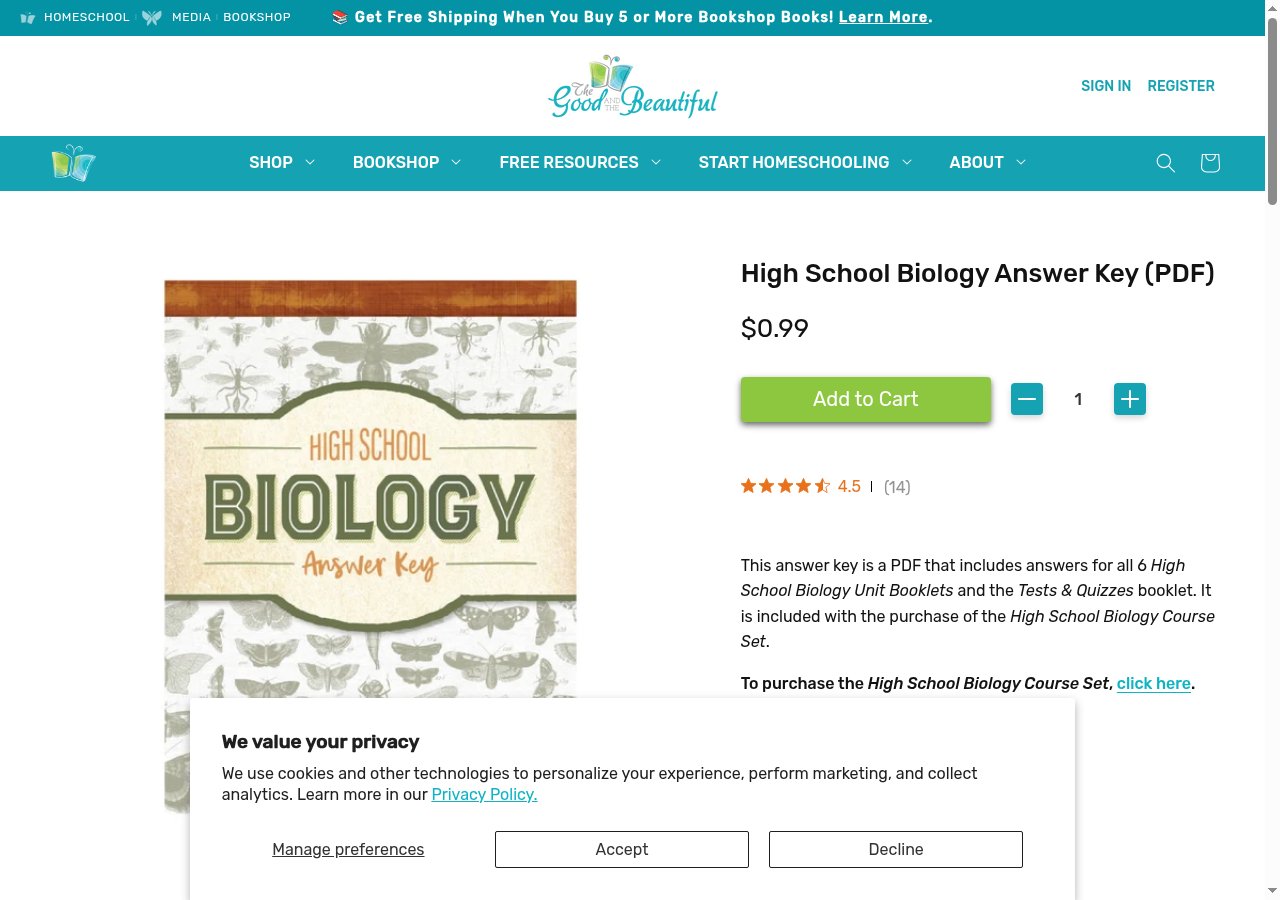
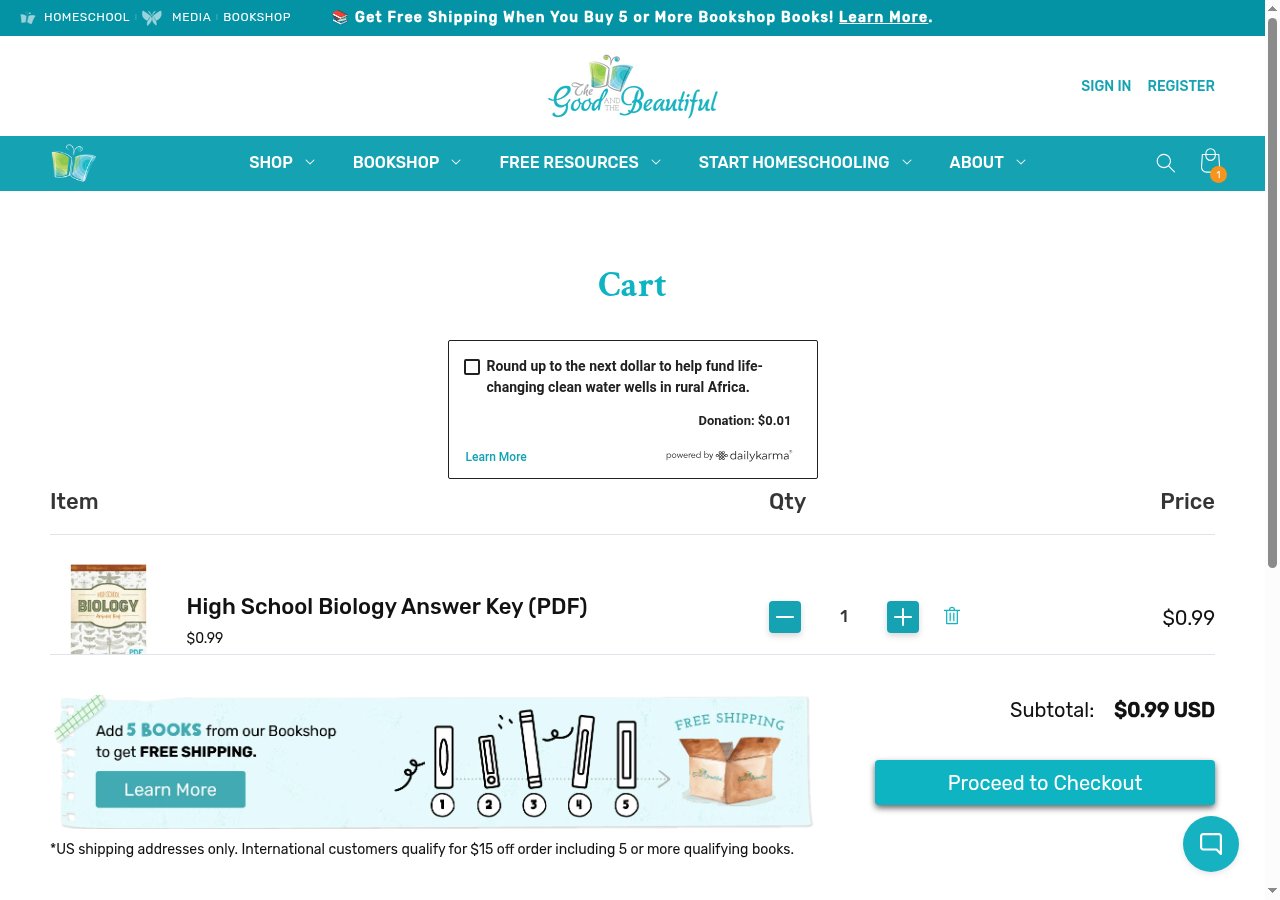
/checkouts/cn/<token>/en-us. A store with Shop Pay sends the cart permalink to shop.app first; the cart page’s own checkout button lands on the store’s checkout, which is where the SDK works.
2. Fill the checkout and read the total
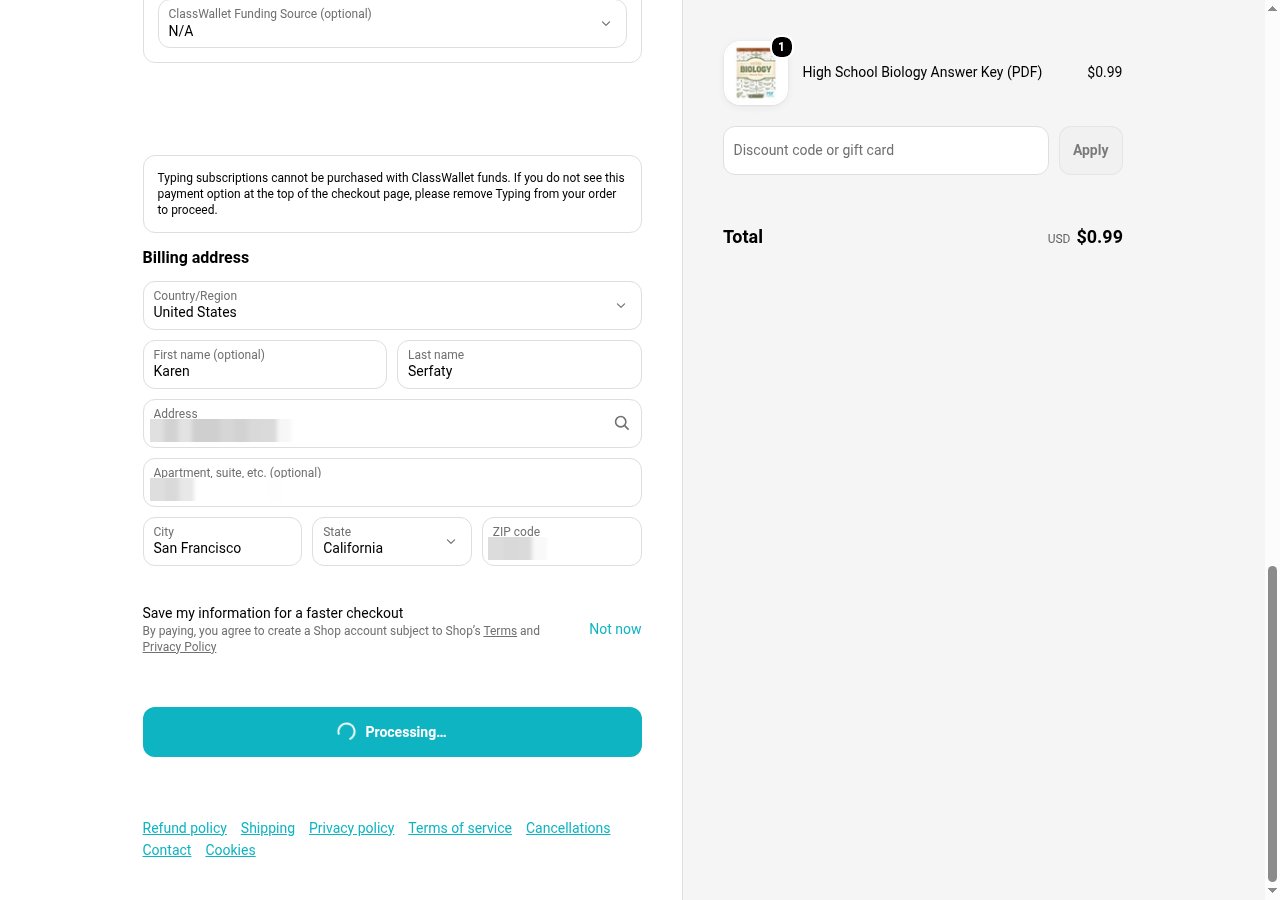
The checkout is one page. Fill the contact email, choose the credit card payment method, and fill the billing address. Shopify recomputes tax for the address, so read the total after the address settles, not before: the estimate before the address said $1.06, and California charges no tax on a digital product, so the total the user approved was $0.99. The amount you pass is the amount the approval shows the user. Shopify’s card request carries no total of its own for the SDK to compare it against, so wait until the order summary has stopped changing before you read it, and read it again right before Pay now if anything on the page changed.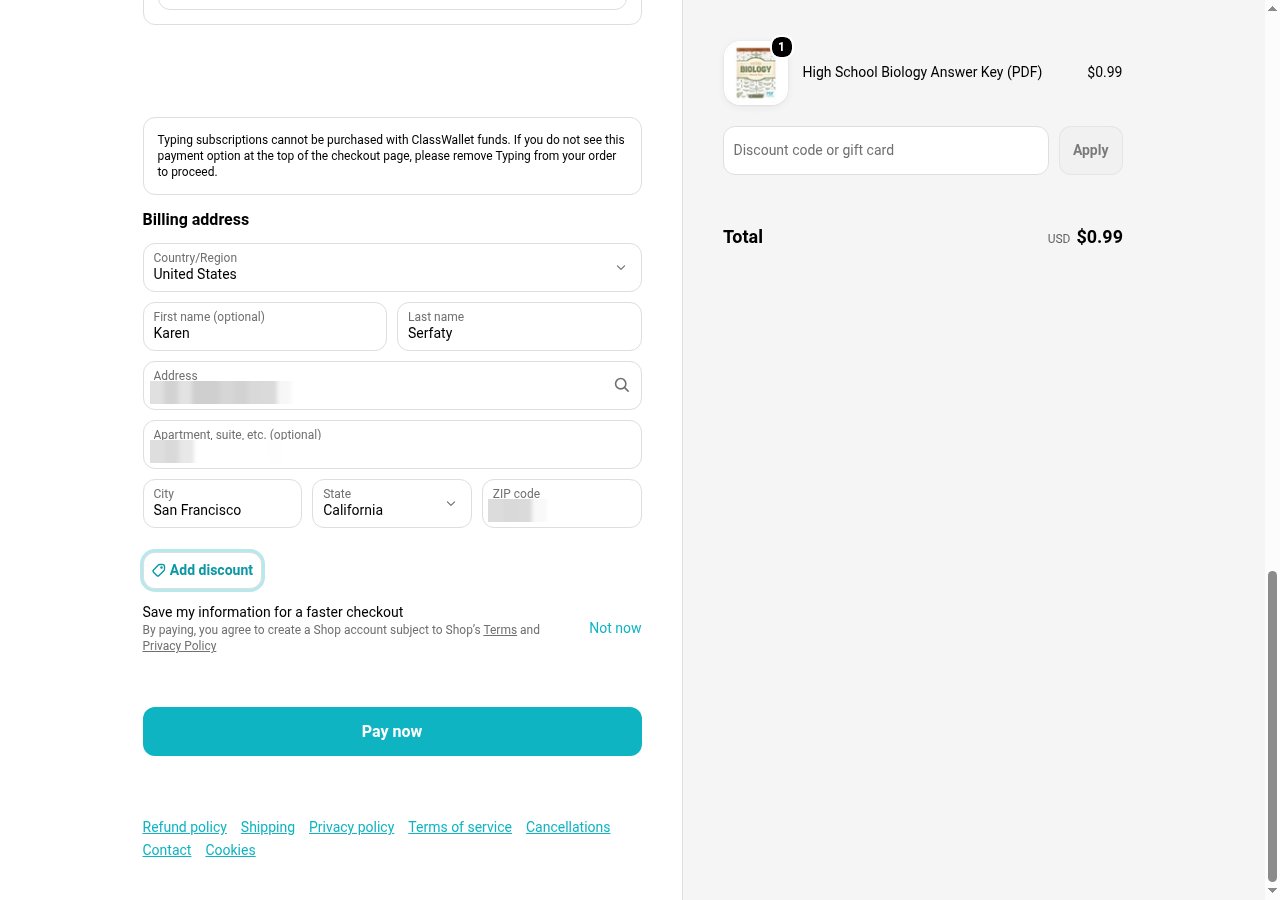
3. Attach before the card form
Attach once the billing address is in and before anything touches the card fields. The call is the one on the Kernel page, with the parts a real purchase needs: the total you just read, the time the user gets, and a merchant result reader.sendToUser is yours: a text, a push, a message in the thread your product already has with the user. The link is a bearer link. Never hand it to the agent or log it where the agent reads.
resolveMerchantResult reads the merchant’s answer, not the processor’s. Shopify’s thank-you page says Confirmation # and the number, then “You’ve paid for your order.” The resolver reports completed only with that number in hand; the thank-you URL alone, or the page before the number paints, is pending. The SDK never clicks Pay for you, and neither should a retry of yours.
Leave requireMerchantResult off for a Shopify checkout. That option holds every further card request until you reconcile, and Shopify sends more of them right after the real card goes through; with the hold on, the SDK blocked eleven of them in two seconds and the page sat on “Processing…” until the browser was deleted. Nothing was charged, and nothing was bought either.
4. Pay with a placeholder card
Shopify renders each card field in its own iframe oncheckout.pci.shopifyinc.com. The iframes are named card-fields-number-…, card-fields-expiry-…, card-fields-verification_value-… and card-fields-name-…; the suffix changes per page load, so match on the prefix. Each iframe holds a hidden honeypot input ahead of the real field; take the visible one, or the number lands in a field Shopify ignores. Type any of Stripe’s published test cards; the docs keep the number out of the page and the script reads it from PLACEHOLDER_CARD_NUMBER. The real card never enters the browser.
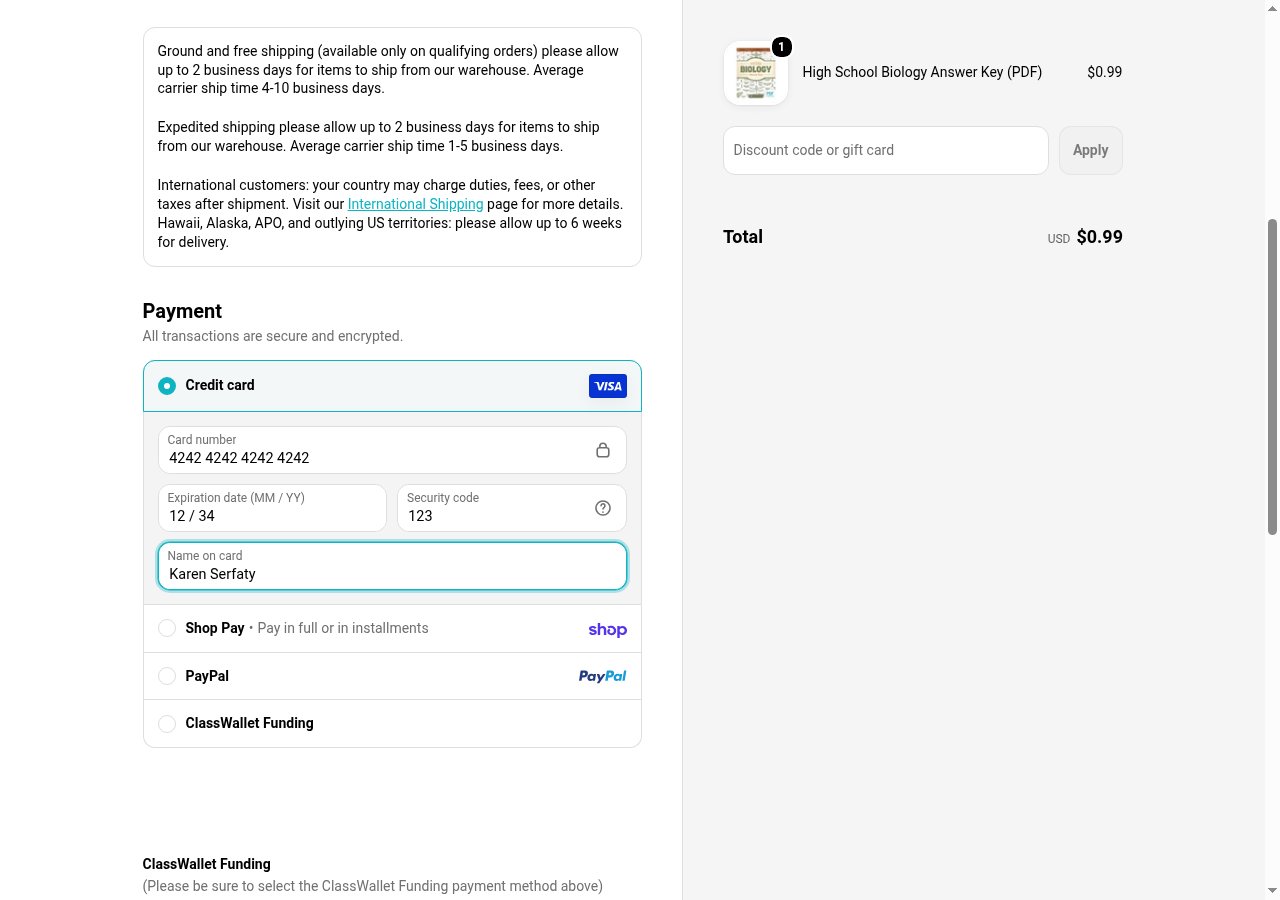
checkout.pci.shopifyinc.com/sessions, the SDK pauses that request, and onApprovalUrl fires with the link. The button reads “Processing…” and stays that way until the user decides; they have 15 minutes.
5. Watch the approval
onStateChange and onEvent are how your code follows along. This is what the run printed, from the click to the merchant’s answer:
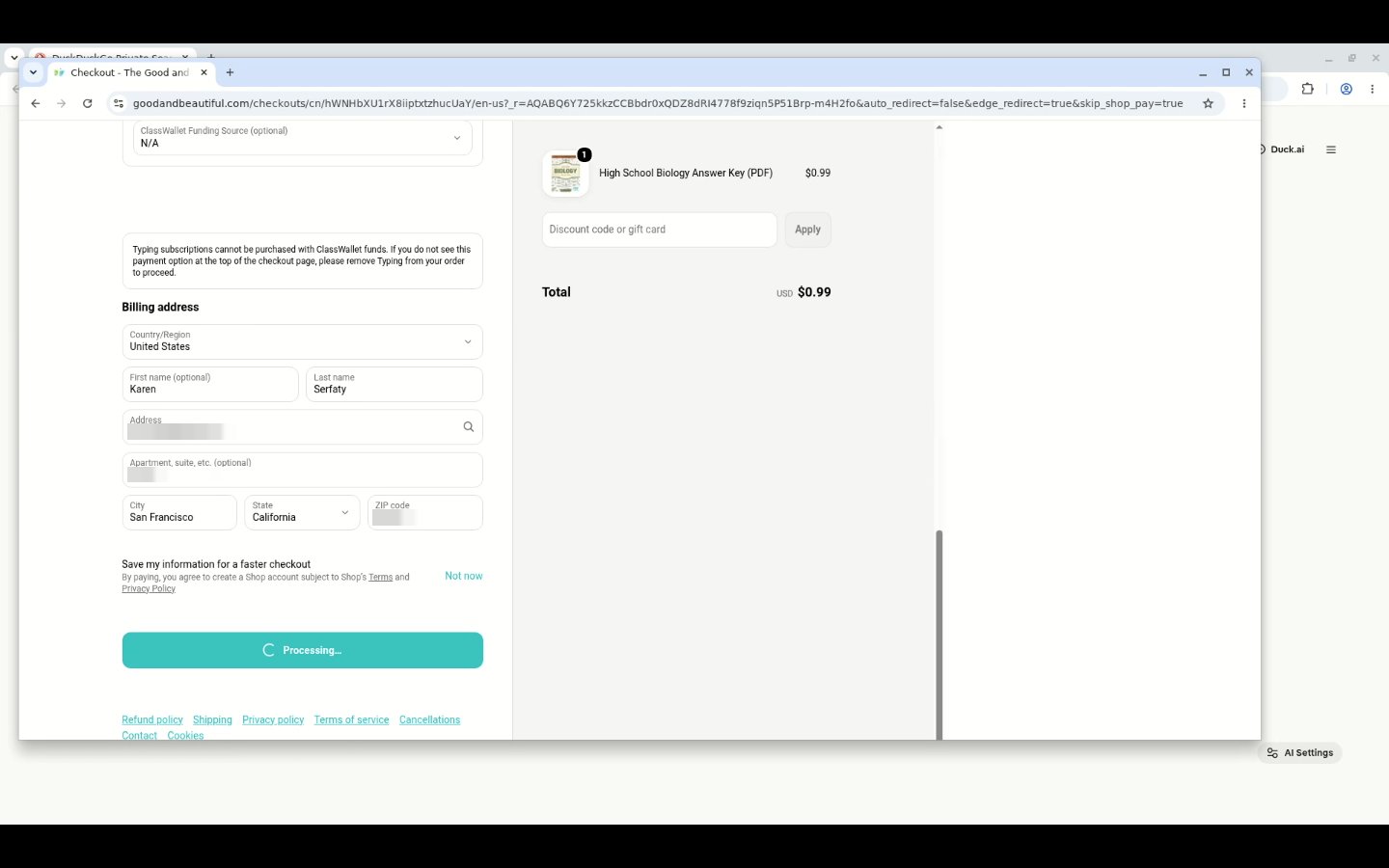
browser_live_view_url opens the session in a tab. During the pause it shows the checkout exactly as the agent left it, which is what you show a user who asks what their agent is doing.
The approval page is bound to the user the purchase was made for. If the user’s phone is signed in to the Vault as a different account, the page says “That approval link is not valid for your account.” The user signs out there, opens a Vault link your code made for their user_id, adds the card, and the approval link works.
6. Read the confirmation number and delete the browser
Once the state turns toawaiting_merchant, wait for the thank-you page and reconcile. Delete the Kernel session only when the result is completed, failed or declined. A pending or outcome_unknown result means the merchant has not answered yet, and the page is the only place to read that answer from, so the session stays up (it ends on its own at timeout_seconds of inactivity) and you reconcile again before you decide anything.
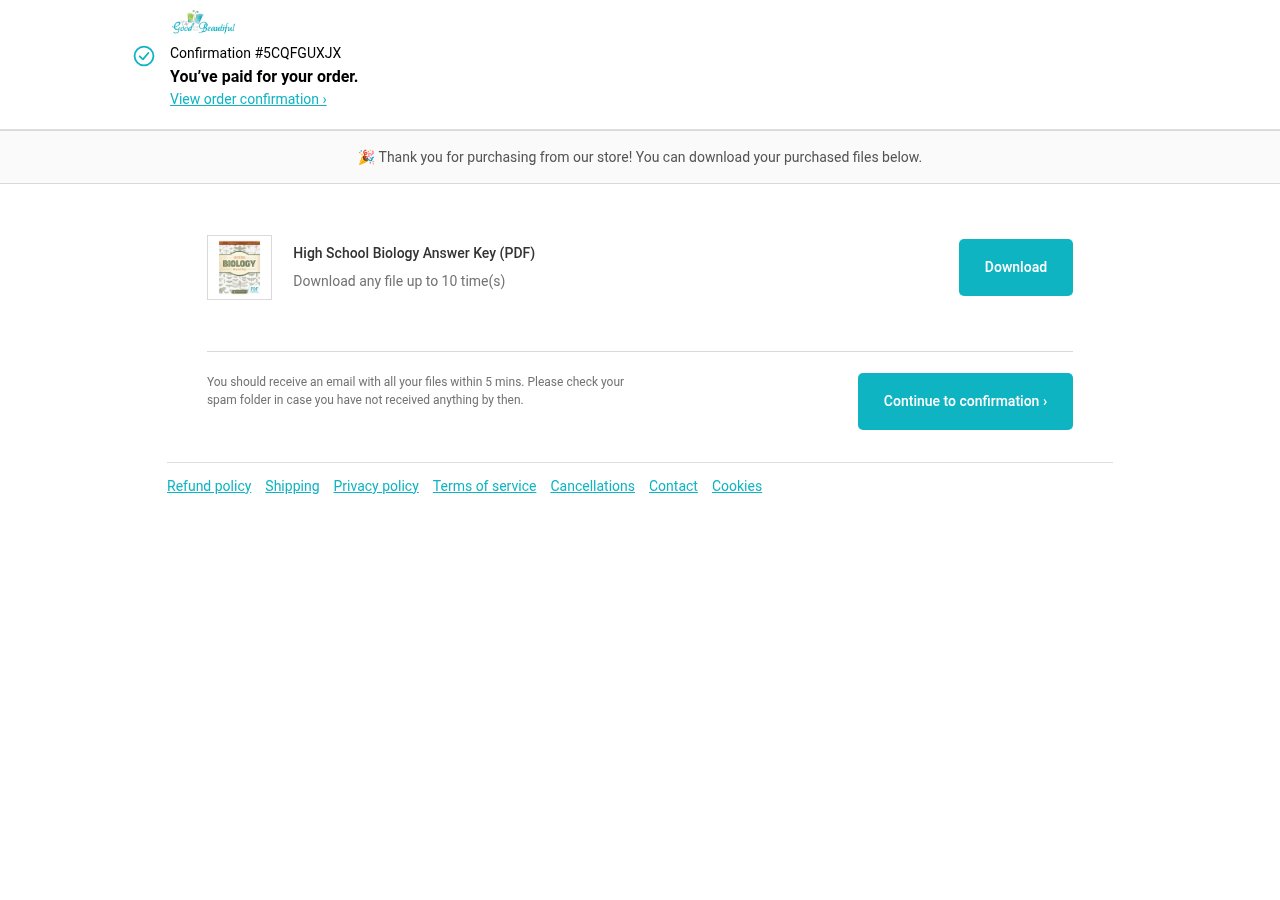
completed with a confirmation number is the only outcome you report as a purchase. pending and outcome_unknown mean keep the browser and look again; a missing receipt is not a failed payment, and clicking Pay again can charge twice. declined means the user said no or the processor refused; nothing was charged.
Run it
The whole run is one file in tiny-agent-company/kernel-shopify-purchase, the script this guide was captured from.shots/.
Handle a run that stalls
The states in the table are thestatus values onStateChange prints. This is the one a stalled run printed, captured with requireMerchantResult on, after the user had approved and the page sat on “Processing…” until the wait ran out:
merchant_not_confirmed means the order was never confirmed, and the authorization’s settlement read says no_processor_reference, which means Agentcard holds nothing at the processor to read back. Only the merchant’s own record settles it. Treat such a run as unknown, keep the session, and do not start another purchase until the store confirms there is no order; the first order can still complete after your wait ran out. On this run the store’s side confirmed it afterwards: no order, no receipt email. The other rows name states this run did not reach; their output has the same shape, state=<status> reason=<reason>.
Where to go next
- Completing a purchase for the webhooks that tell your server the same story.
- Kernel for Kernel’s own vault integration, where Kernel intercepts the card at its network edge and no SDK is attached.