

user_id they can charge against.
Before you start
- A Vercel account and the Vercel CLI signed in (
npm i -g vercel && vercel login). The agent deploys there, and the model (anthropic/claude-sonnet-5inagent/agent.ts) runs through the Vercel AI Gateway on your team, authenticated by the deployment itself: no model API key, and model usage bills your Vercel account. - A phone with iMessage. Linq’s sandbox only talks to the number you activate it from.
- A business email address whose domain has never been used with Linq. Linq keys sandbox accounts by domain.
- Node.js 24 or newer on your machine.
Tools

Linq
Agentcard Vault

Vercel eve
1. Copy the blueprint
The repo is tiny-agent-company/vault-imessage-agent. Clone it under a name of your own; every agent you run later starts from this same copy..env.local lists six values. The next two steps fill three of them; the other three come after the deploy.
2. Get your Agentcard credentials
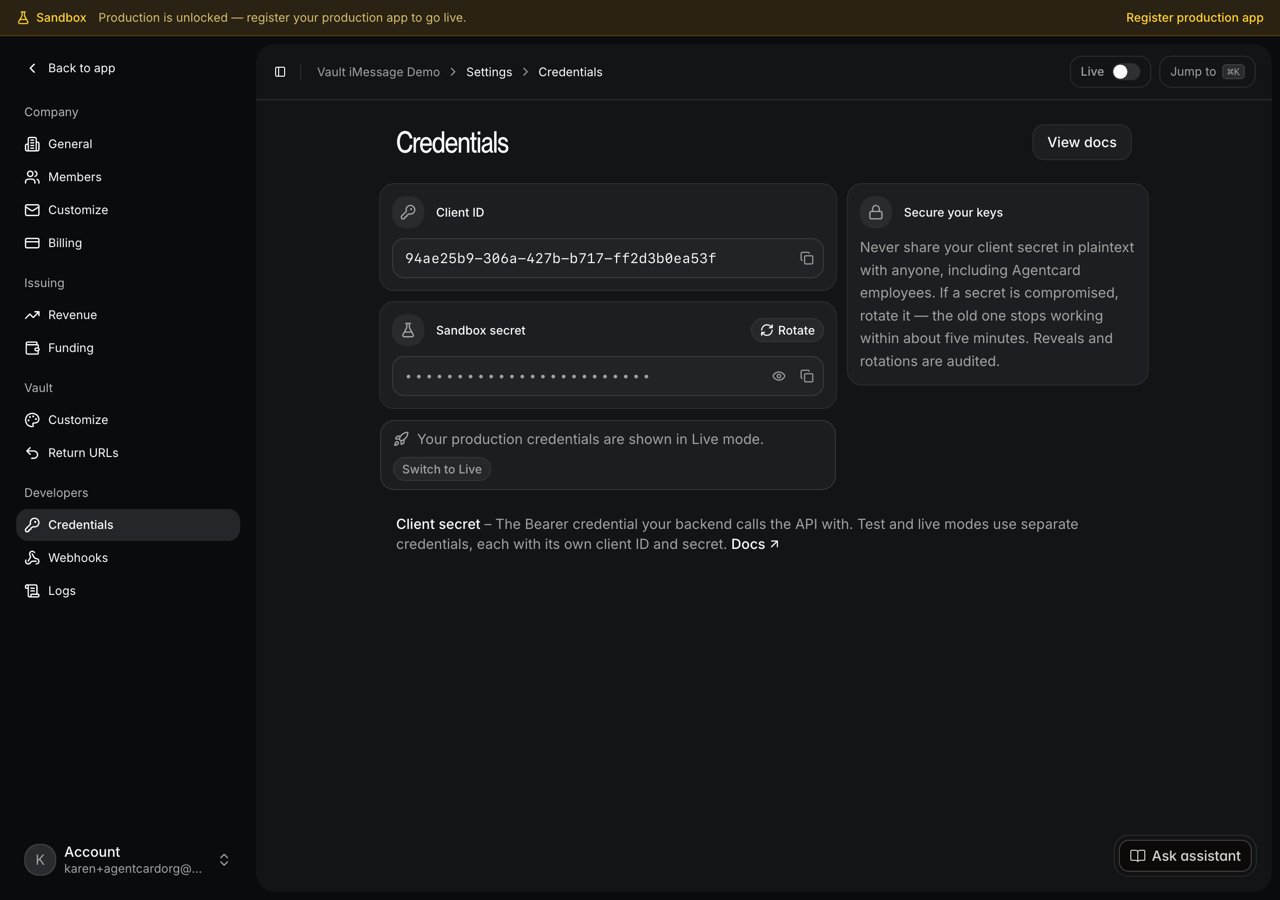
The agent creates Vault links with an organization token, which comes from aclient_id and client_secret.
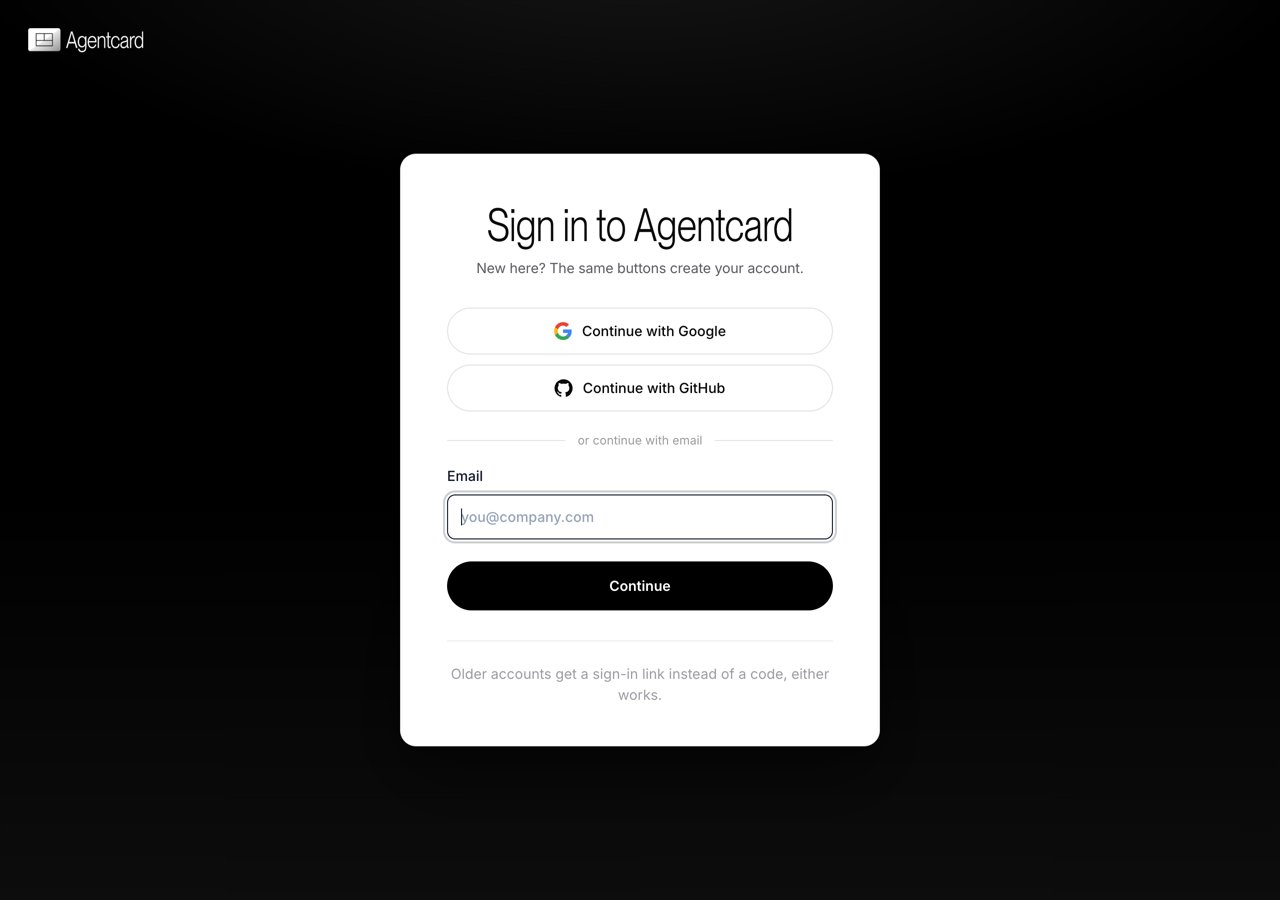
- Go to app.agentcard.sh and enter your email. New addresses create an account; you sign in with a six-digit code from your inbox.
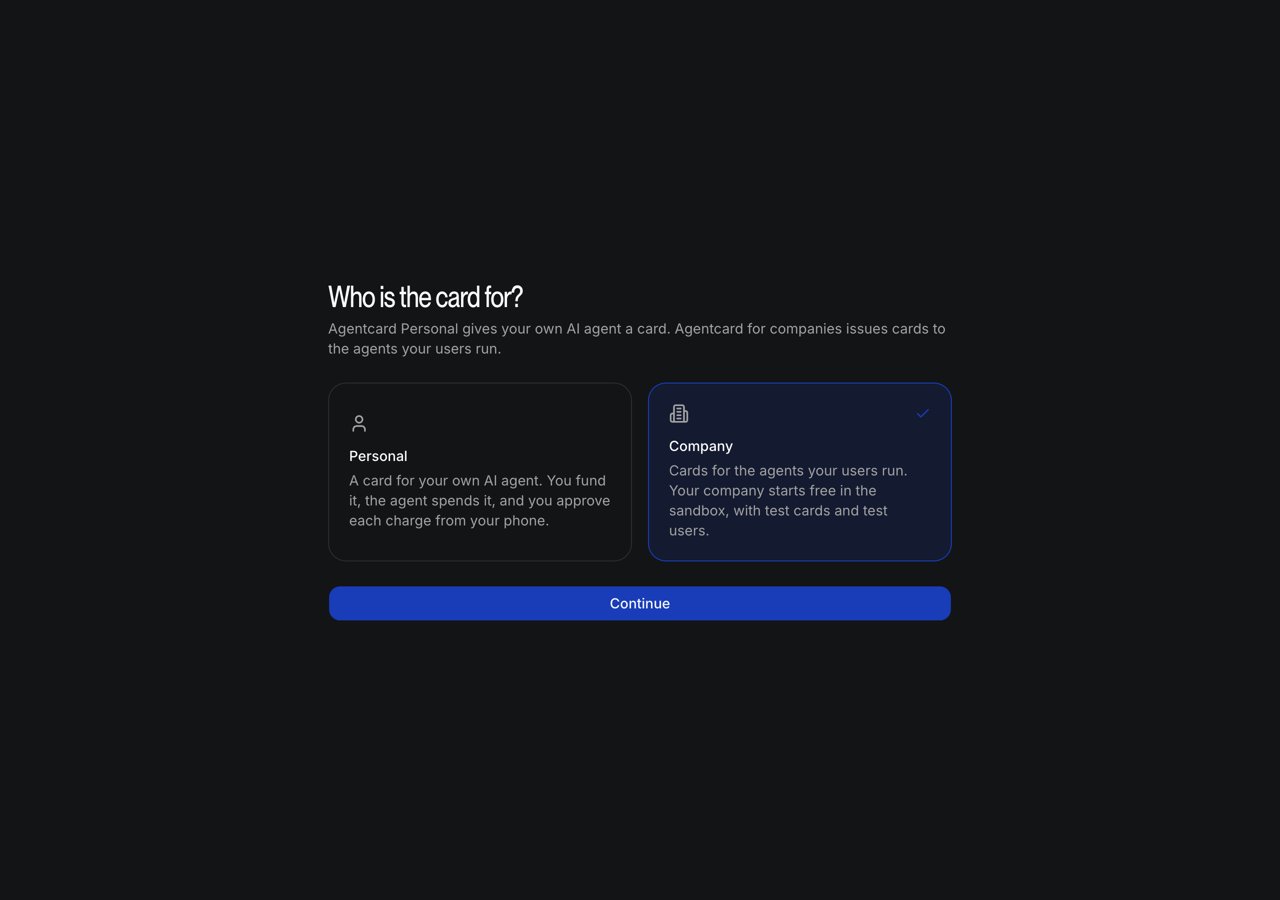
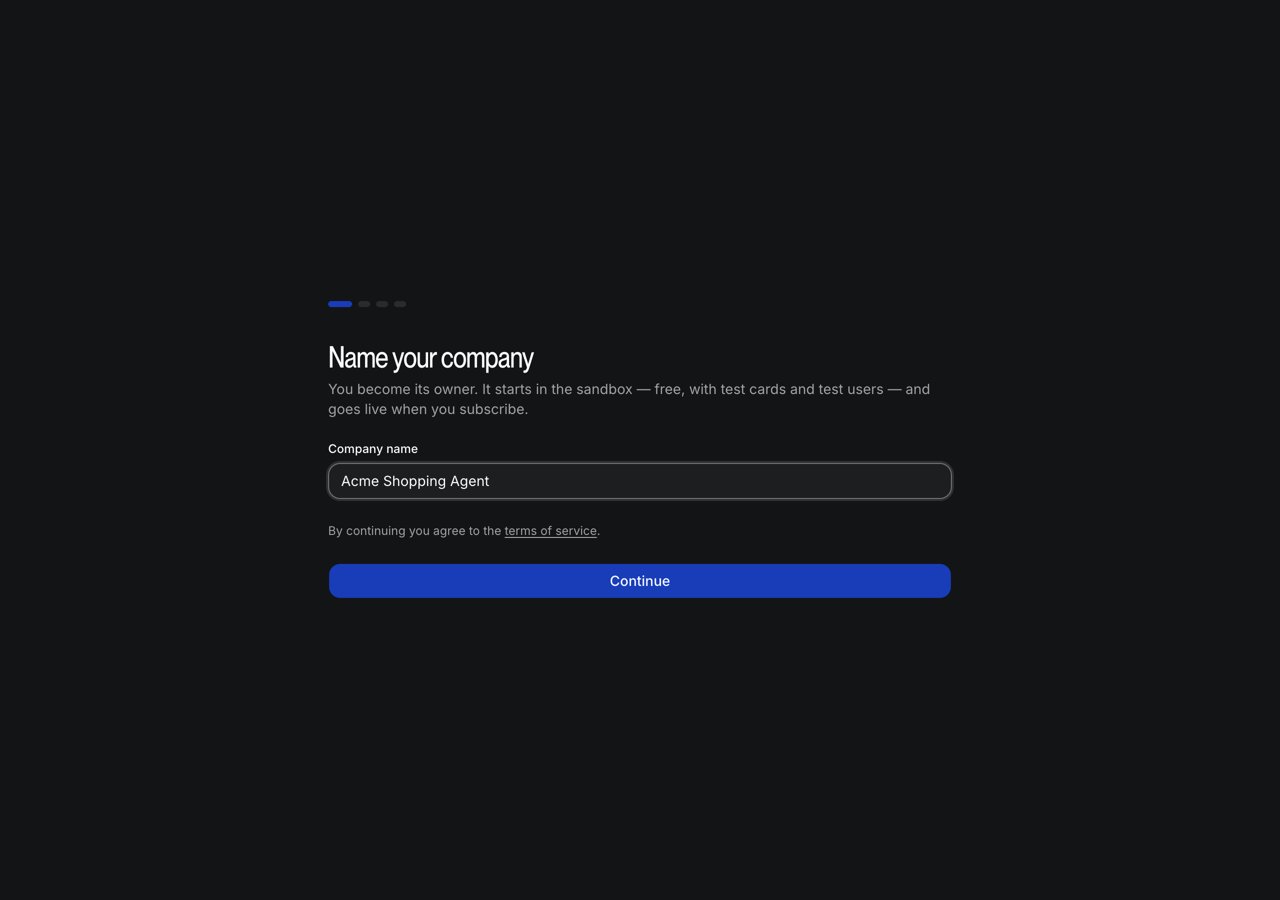
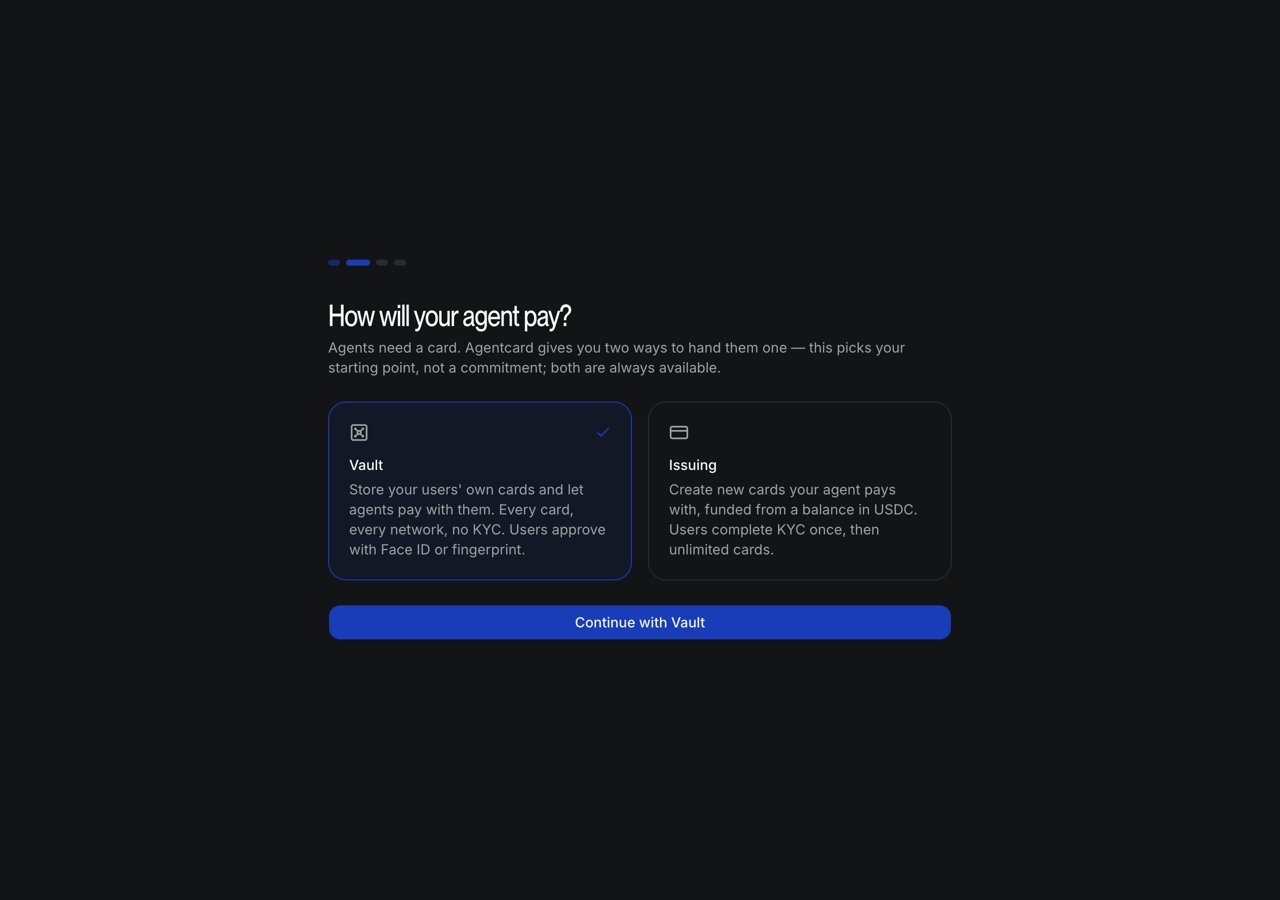
- Pick Company, name it, and pick Vault when asked how your agent will pay.
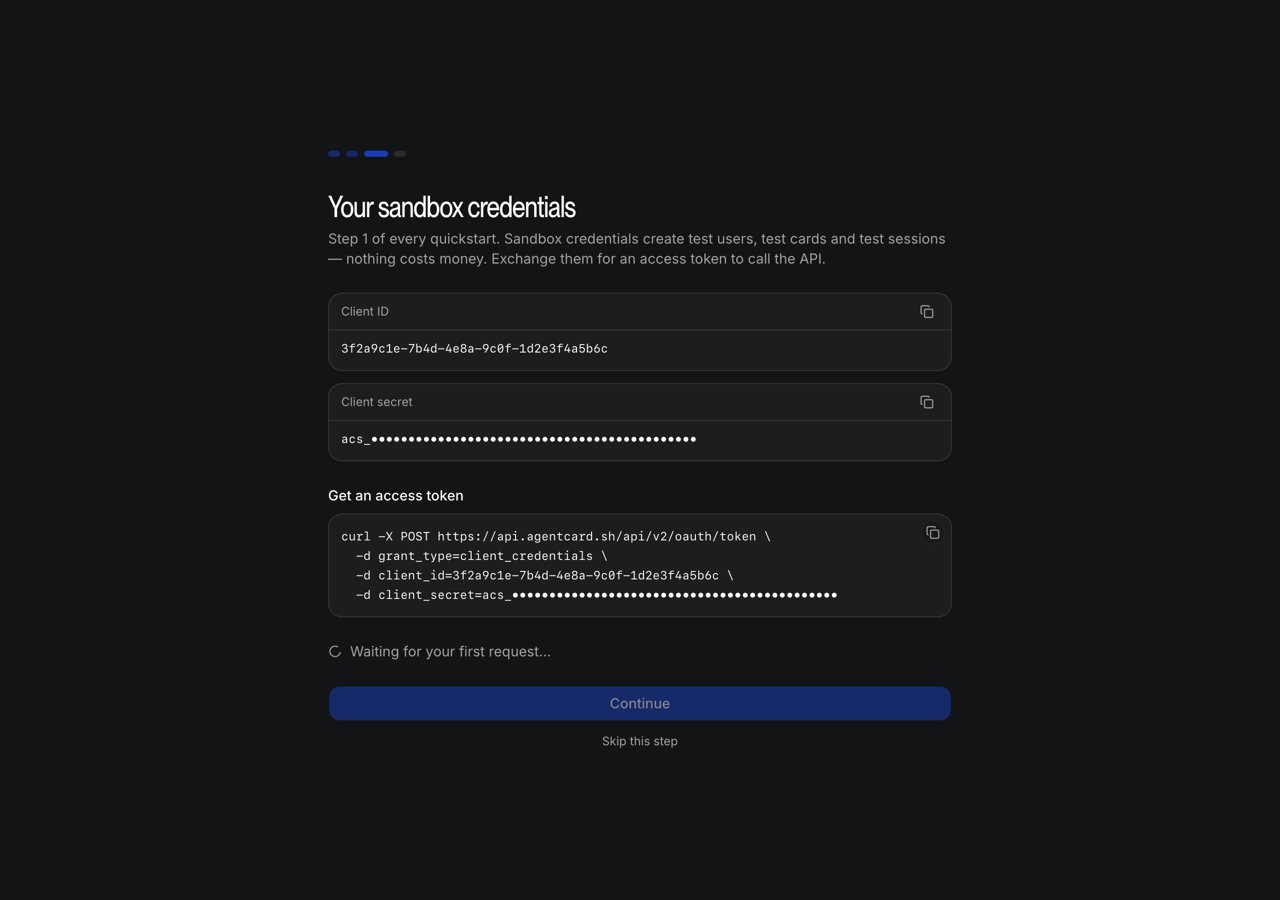
- The next screen is Your sandbox credentials. Copy the Client ID into
AGENTCARD_CLIENT_IDand the Client secret intoAGENTCARD_CLIENT_SECRETbefore you continue.
3. Get your Linq credentials
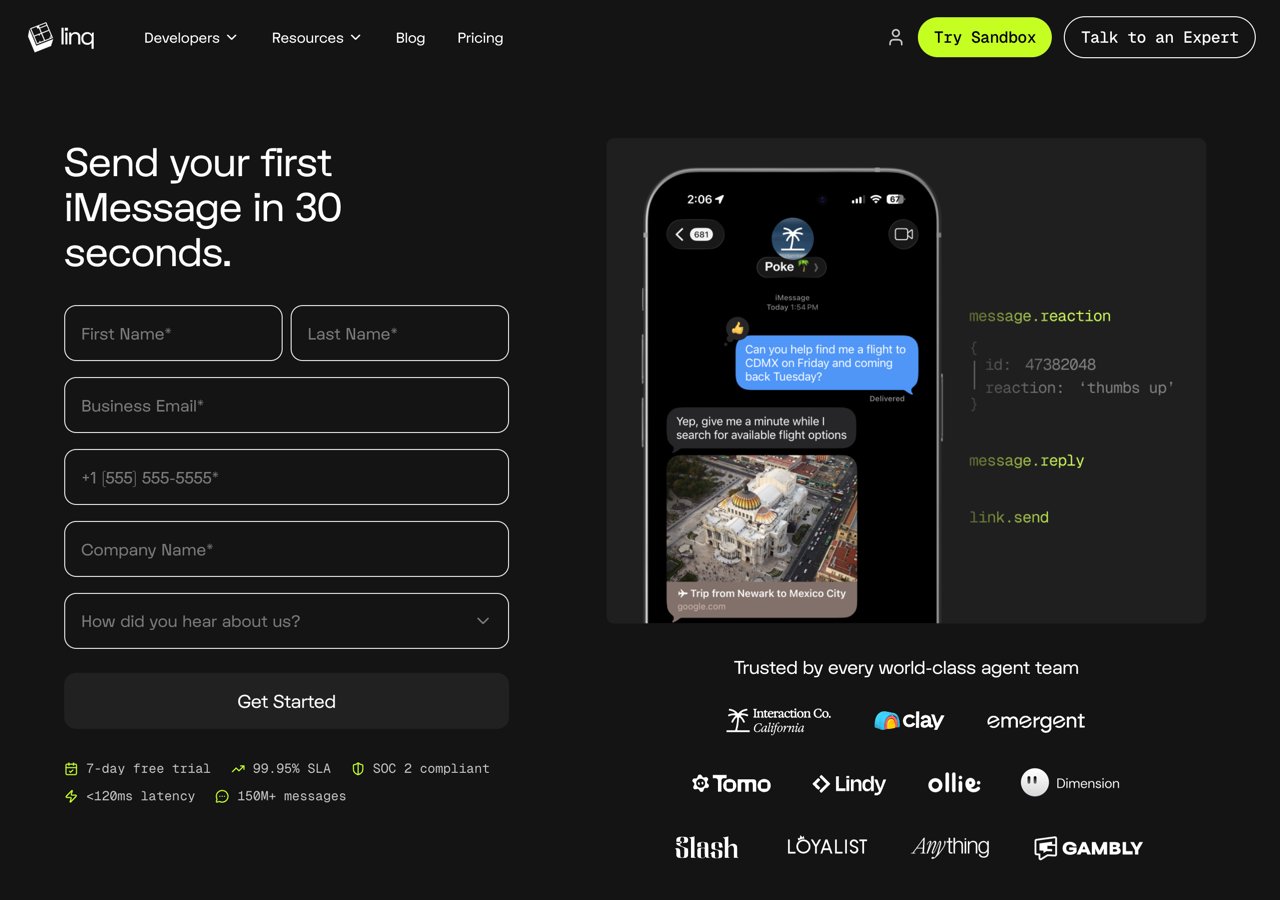
Linq gives your agent a phone number. The sandbox is free for seven days, needs no card, and only exchanges messages with the phone you activate it from.- Open dashboard.linqapp.com/sandbox-signup and fill in the form with your business email. Verify the six-digit code Linq emails you.
- Click through the four intro screens. The last one, Activate your sandbox, shows your Linq number. Text the word Activate to it from your phone. Linq replies “Activated.” within a few seconds, and that phone becomes the sandbox’s allowed recipient.
- Reload the dashboard. Under Developer Tools → Your API Token, click Show token and copy the
linq_…value intoLINQ_API_KEY. - Note the number under Send from. That is the number people will text.
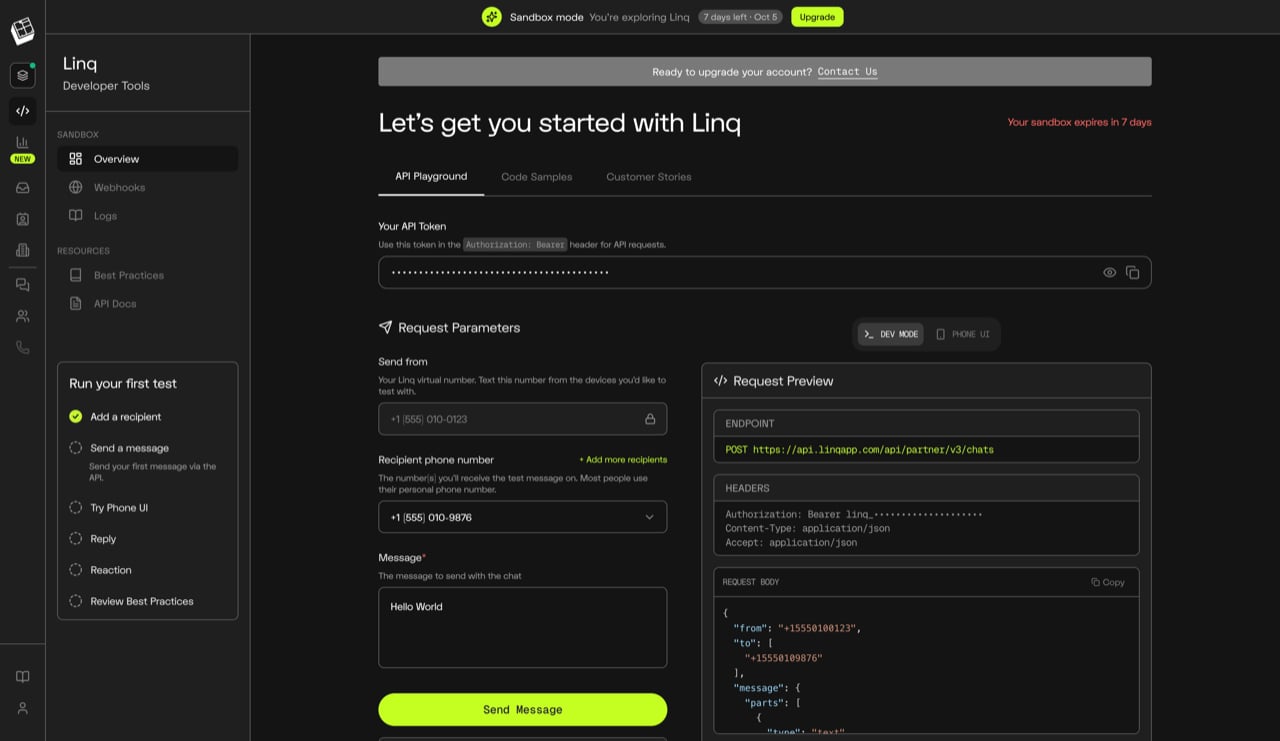
If the form says “Your company already has a Linq account with us”, someone at your domain signed up before. Ask them for access or use a different domain; Linq will not open a second sandbox for the same one.
LINQ_WEBHOOK_SECRET empty for now. It is created in step 5, once the agent has a URL.
4. Deploy to Vercel
The Linq channel readsLINQ_API_KEY while the agent builds, so the deployment needs its variables before the first build. Link a Vercel project, add the three values you have, add the Redis store, then deploy:
vercel integration add upstash/upstash-kv creates an Upstash for Redis database on the Vercel Marketplace, connects it to the project, and sets KV_REST_API_URL and KV_REST_API_TOKEN on every environment; the first time it opens the browser to accept Upstash’s terms and pick the free plan. The same thing is available in the Vercel dashboard under Storage → Create Database → Upstash for Redis. The agent stores one key per Vault link there, so the webhook in step 6 can find the conversation to reply to.
If you would rather not go through the Marketplace, create the database at console.upstash.com yourself: Redis → Create Database, any name, the region closest to your Vercel deployment, the free plan. The database page shows the REST endpoint and token; set them on the project by hand and the agent picks them up the same way:
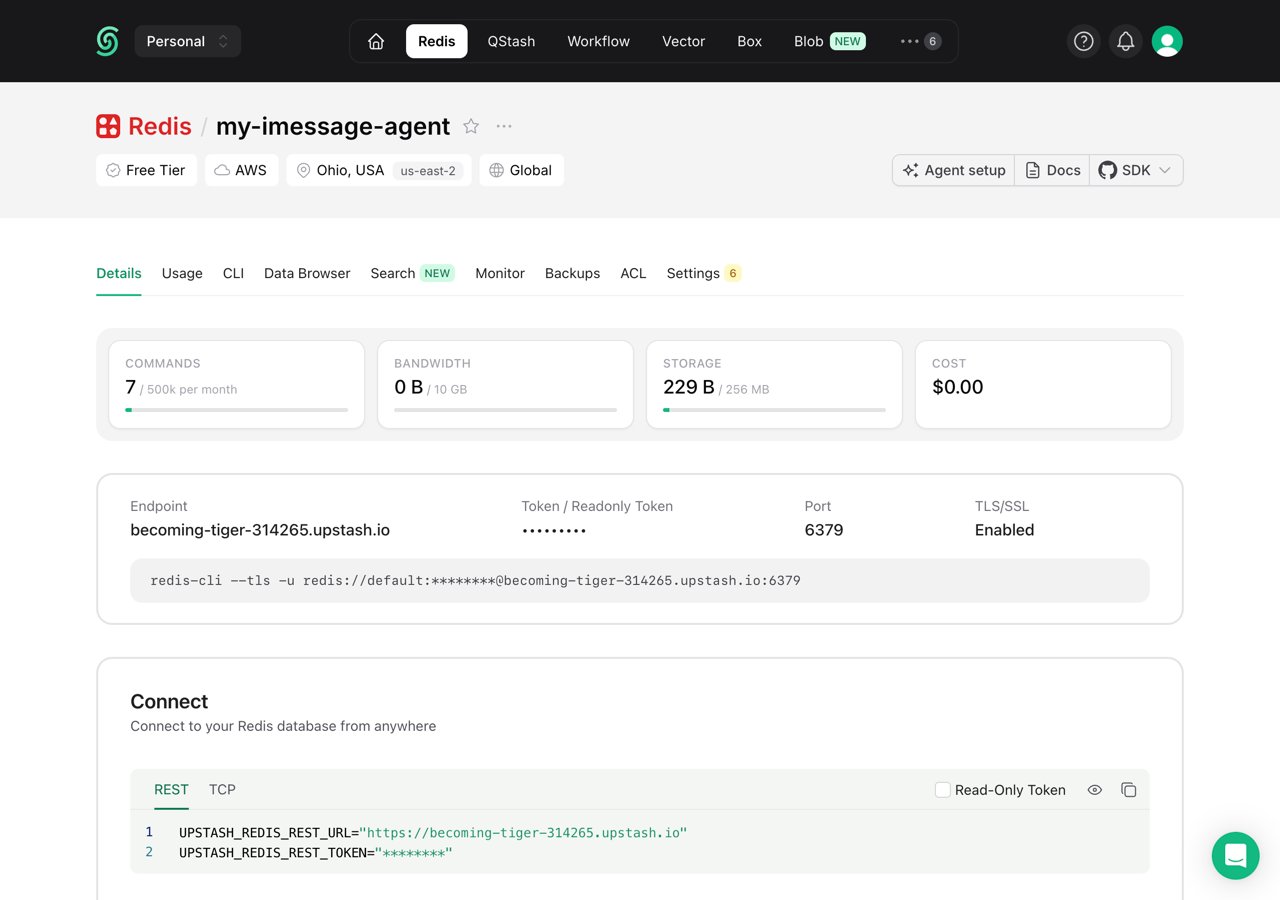
npx eve link creates the project if it does not exist; add --team <slug> if your account belongs to more than one team. Each vercel env add prompts for the value; paste it from .env.local. The agent texts from the first number on the Linq account; if you have several, set LINQ_PHONE_NUMBER the same way. npm run deploy runs eve deploy, which builds, ships to production, and prints the URL: https://my-imessage-agent.vercel.app if the name was free, otherwise a variation of it.
Confirm the agent is up:
5. Point Linq at the deployment
Create a webhook subscription formessage.received, targeting the agent’s Linq route. Use your token and your deployment URL:
signing_secret is shown once. Save it locally and on Vercel, then deploy again so the agent picks it up:
6. Point Agentcard at the deployment
Register a webhook endpoint for the two Vault events, targeting the agent’s Agentcard route. The calls below run as your organization, so first exchange the sandboxclient_id and client_secret from step 2 for an organization token (it lives an hour; the agent does the same exchange on its own at runtime). A sandbox token makes a sandbox endpoint, which receives sandbox events:
secret is shown once. Store it with the Linq secret from the previous step and deploy again:
AgentCard-Signature against this secret and ignores anything that fails, so until it is set the card-stored text never arrives.
Why both events: a user who stores a card produces vault.session_linked the moment their passkey binds the session, then vault.card_stored ten to twenty seconds later when the card lands. A returning user who only unlocks an existing vault produces the first and never the second. The blueprint texts once per stored card, and for an unlock with no new card it waits thirty seconds before texting, so the message names the card that was actually added.
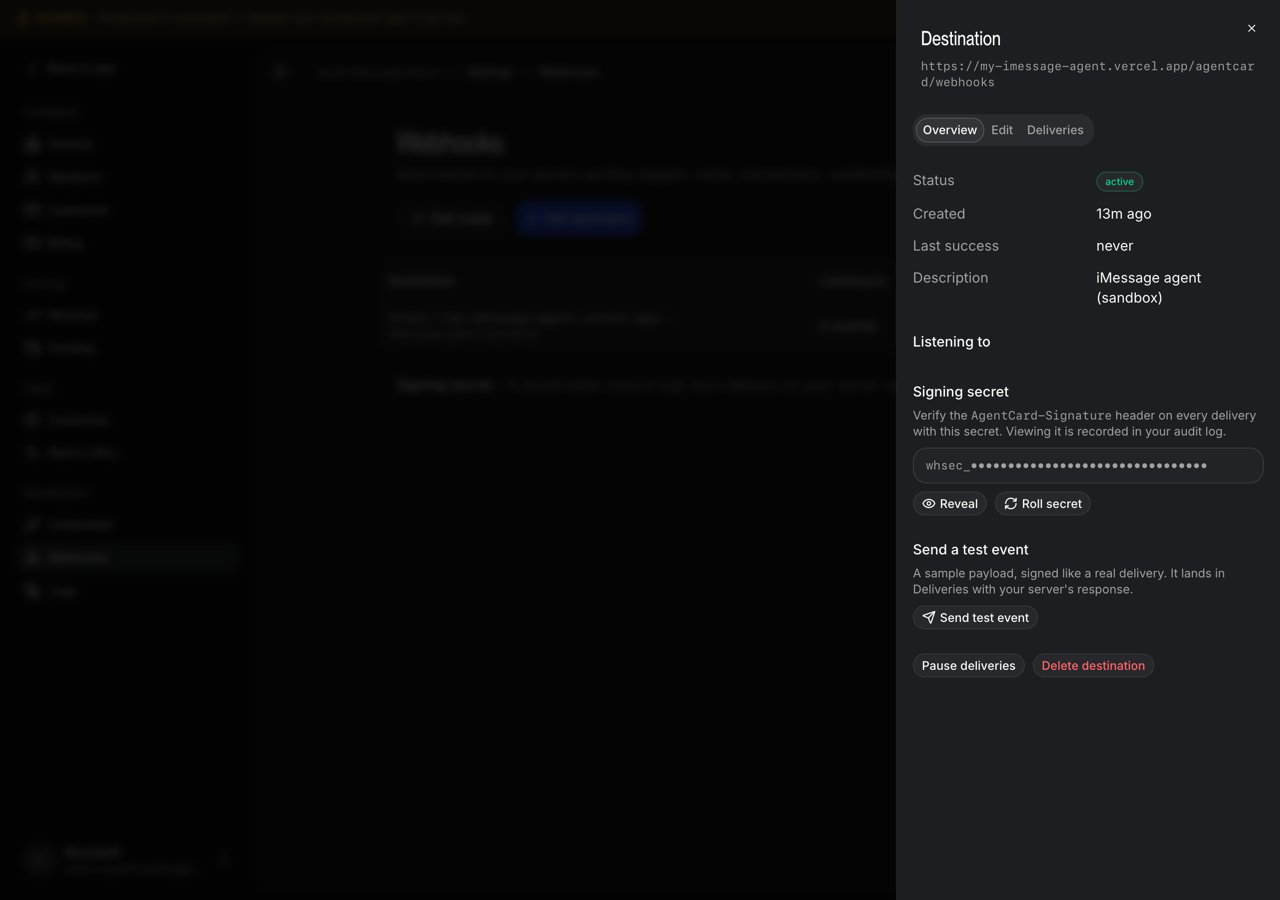
The endpoint now shows under Settings → Developers → Webhooks in the Agentcard dashboard, where you can reveal or roll the secret, send a signed test event, and read every delivery with the status your agent returned.
7. Text it
From the phone you activated the sandbox with, text the Linq number: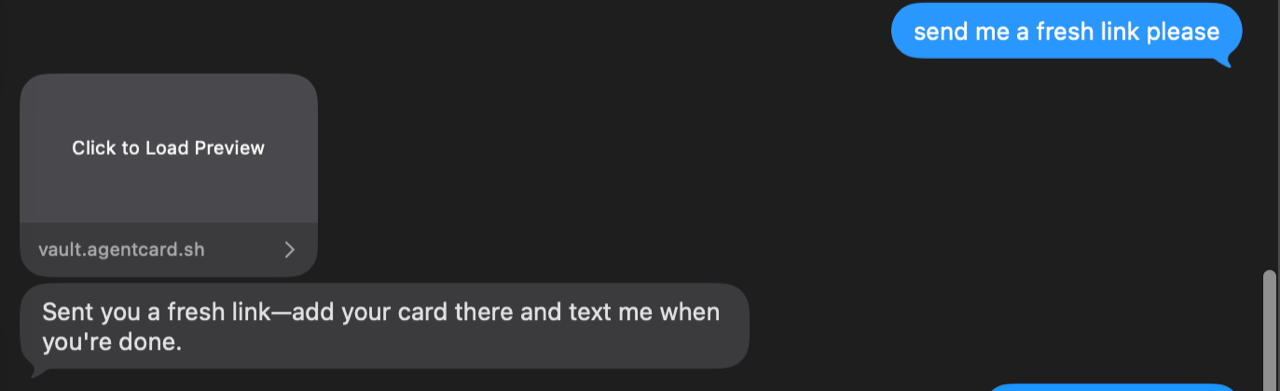
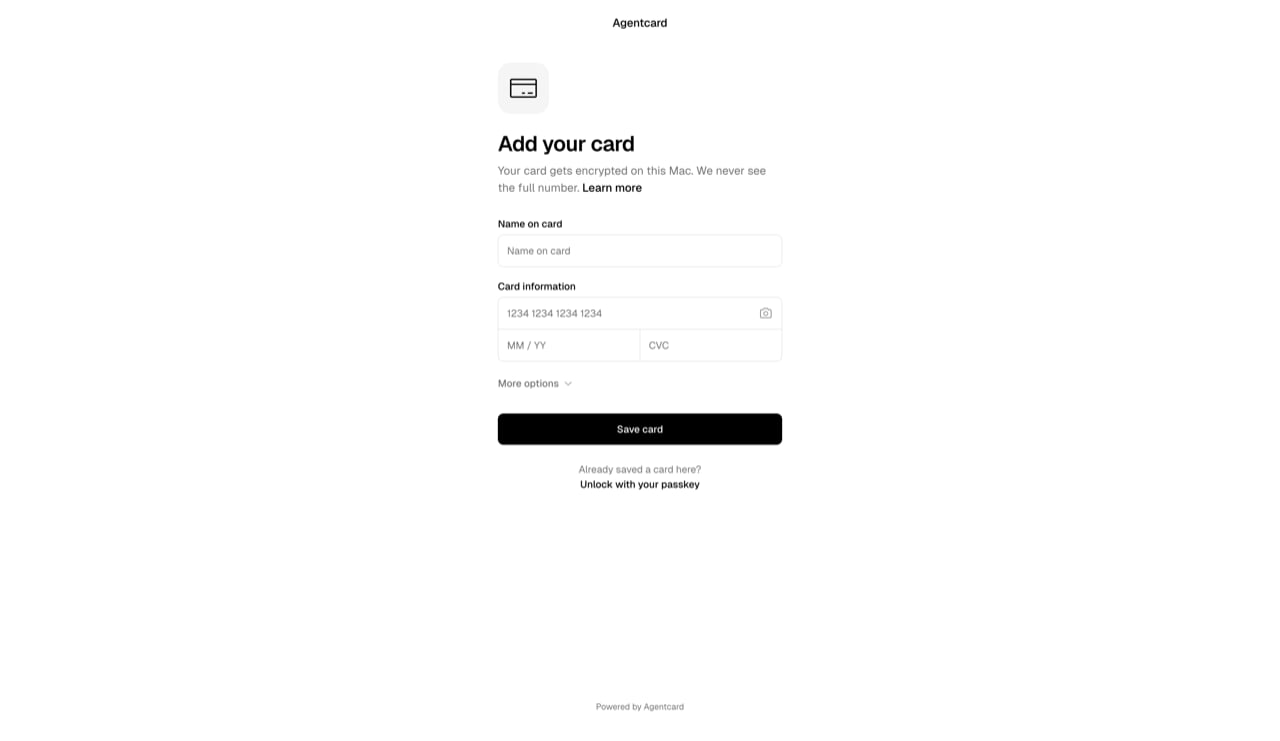
4242 4242 4242 4242, any future date, any CVC), and save with Face ID or Touch ID. Within a few seconds a text arrives on its own: Agentcard delivered vault.card_stored to the agent, and the agent told you the card ending in 4242 is set up. If you text “done” before it lands, the agent reads the session itself and confirms.

On an iPhone whose passkey provider is 1Password, the Vault asks for a master password before it saves the card. 1Password on iOS will not hand the passkey’s secret back on later unlocks, so the Vault needs a second key it can open the card with. iCloud Keychain passkeys have no such step.
user_id it now holds is the same id the rest of the Vault uses. From here, create a cart and complete a purchase with it; the user approves each charge from the thread with the approval link.
If nothing comes back
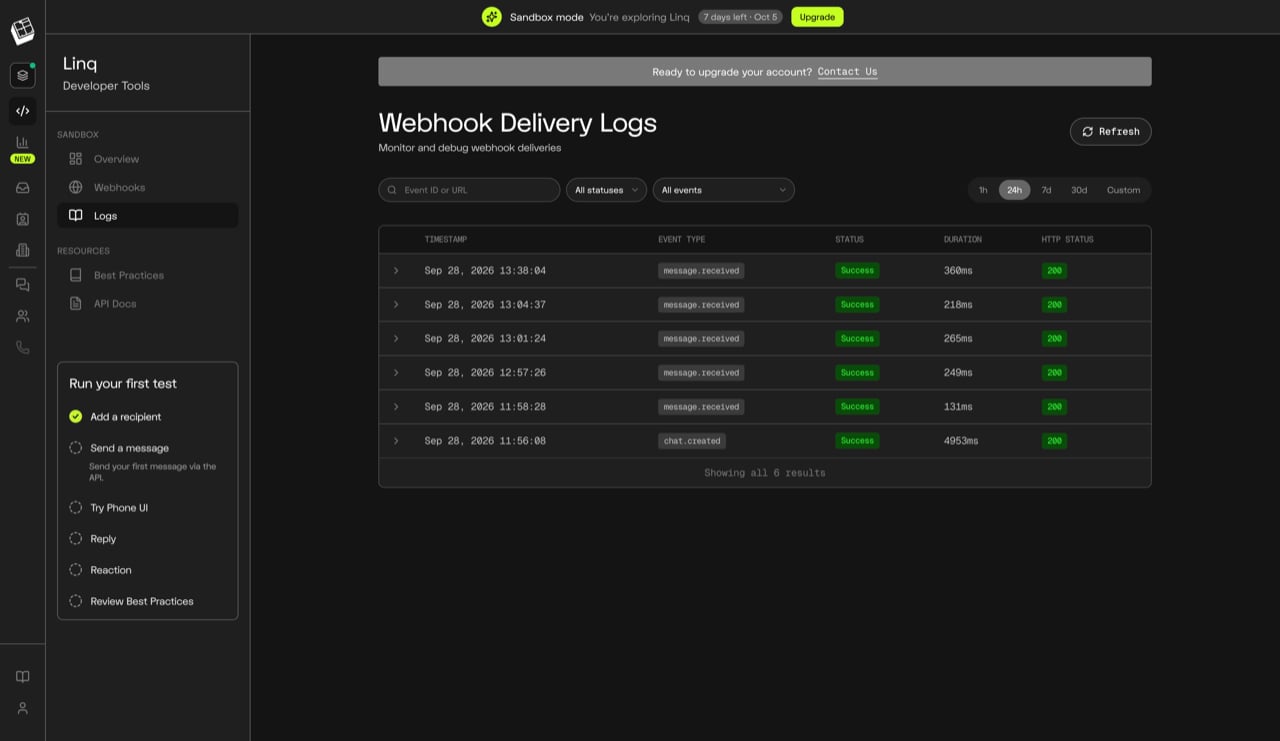
Work from the outside in:curl https://<your-deployment>/eve/v1/healthreturns"ok": true. If not, the deploy failed:vercel logs <your-deployment>shows why, and a missingLINQ_API_KEYis the usual cause.- In the Linq dashboard, Developer Tools → Logs (“Webhook Delivery Logs”) lists every
message.receiveddelivery with its HTTP status and duration. A200means your agent accepted the text and the problem is after that; a401meansLINQ_WEBHOOK_SECRETdoes not match the subscription, so create a new subscription and store its secret. No row at all means the subscription points somewhere else:GET https://api.linqapp.com/api/partner/v3/webhook-subscriptionswith your token shows what is active.
vercel agent-runs list in the project folder shows each conversation with its status, model, and token count:
vercel agent-runs trace <runId> shows the turns, tool calls, and any model or tool error. The same data is under Observability → Agent Runs in the Vercel dashboard. An error creating the Vault session usually reads client_credentials_required (an API key was pasted instead of the client id and secret) or 401 (a typo in one of them).
4. No “card is set up” text after saving a card: in the Agentcard dashboard, Settings → Developers → Webhooks lists each delivery with its response. A 401 means AGENTCARD_WEBHOOK_SECRET does not match the endpoint; a 200 with no text means the Redis store had no entry for that Vault link, which happens when the link was created before KV_REST_API_URL was set.
5. To talk to the deployed agent without a phone, npx eve remote connect --url https://<your-deployment> opens a terminal chat on the same code.
Make it yours
Everything the agent says comes fromagent/instructions.md; edit it and npm run deploy. Add a tool by dropping a file in agent/tools/ (the filename is the tool name the model sees). The eve docs cover tools, state, and the Linq channel’s options.
Running more than one
Every agent you want on its own number is another clone of the blueprint with its own Linq number, its own Vercel project, and the same Agentcard credentials. Users who already stored a card unlock it with their passkey on the next agent’s link instead of entering the card again. To let anyone text the agent, not only the phone you activated with, move the Linq account off the sandbox: Upgrade in the Linq dashboard, or talk to Linq. The token and the webhook carry over.Where to go next
- Add the Vault to an iMessage agent for the raw API calls behind the two tools, and the webhooks to confirm enrollment without polling.
- Linq’s native integration if you would rather Linq draw the card enrollment and approvals as bubbles in the thread.
- eve’s Linq channel for
turnPolicy,onMessage, and Vercel Connect, which can provision the Linq account for you.