

BROWSER=<name> npm run buy, that prints completed order #XTLQVAF0Y and a browser you can watch while it happens.
Before you start
A real purchase needs production credentials. The sandbox recognises the card request and pauses it, but no approval link is sent and nothing is charged. Run the sandbox first to see the pause, then switch the credentials.
@agent-cards/sdkandplaywright-coreinstalled, plus the SDK of the browser you pick:@onkernel/sdk,@browserbasehq/sdk,browser-use-sdkoranchorbrowser, and that provider’s API key. Your own browser needs a Chromium to launch instead.@agent-cards/sdkis the SDK’s current name;@agent-cards/checkoutstill installs and re-exports it.- An Agentcard organization with production credentials (
client_idandclient_secret), and a user of that organization with a card in the Vault. Adding a card gets you both; the user’suser_idis what you pass to the SDK. - A Shopify store with guest checkout and something cheap. The runs below use The Good and the Beautiful, a homeschool publisher, and its $0.99 High School Biology Answer Key (PDF): a digital product, so nothing ships and the checkout asks for an email and a billing address only.
- A way to reach the user, and their phone within reach. The approval link is theirs to open, and it expires after 15 minutes.
Tools

Agent browsers
Agentcard Vault

Shopify checkout
How it works
1. Start the browser
Each browser hands Playwright a page in a different way, and each one is watched and ended differently. Everything after this step takesbrowser and does not care where it came from.
- Kernel
- Browserbase
- Browser Use
- Anchor
- Your own browser
Kernel creates a Chromium with a CDP address and a live view URL. The session outlives your process until you delete it or it idles out, which is what lets a run wait on the user.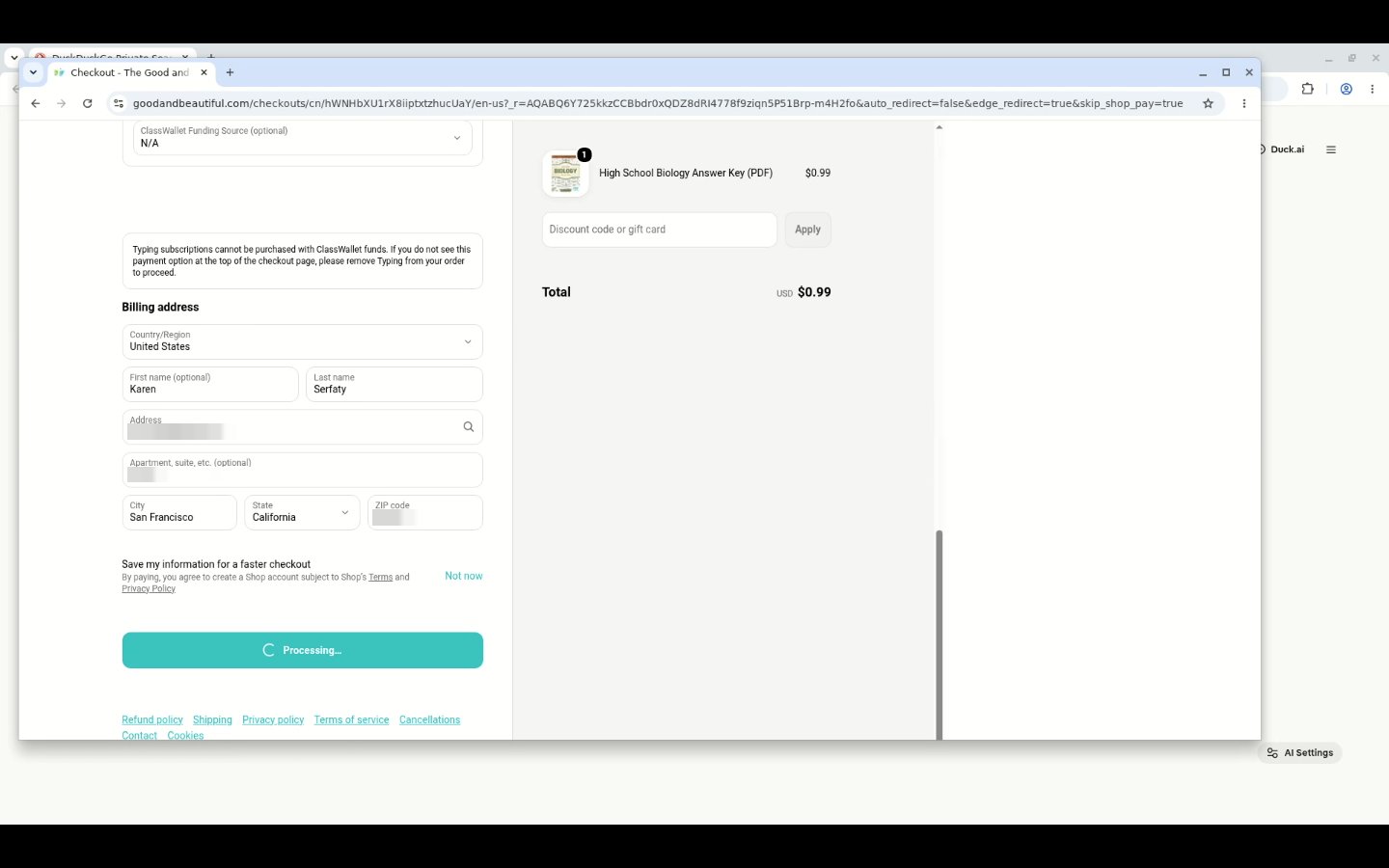
browser_live_view_url opens the session in a tab. During the pause it shows the checkout exactly as the agent left it, which is what you show a user who asks what their agent is doing.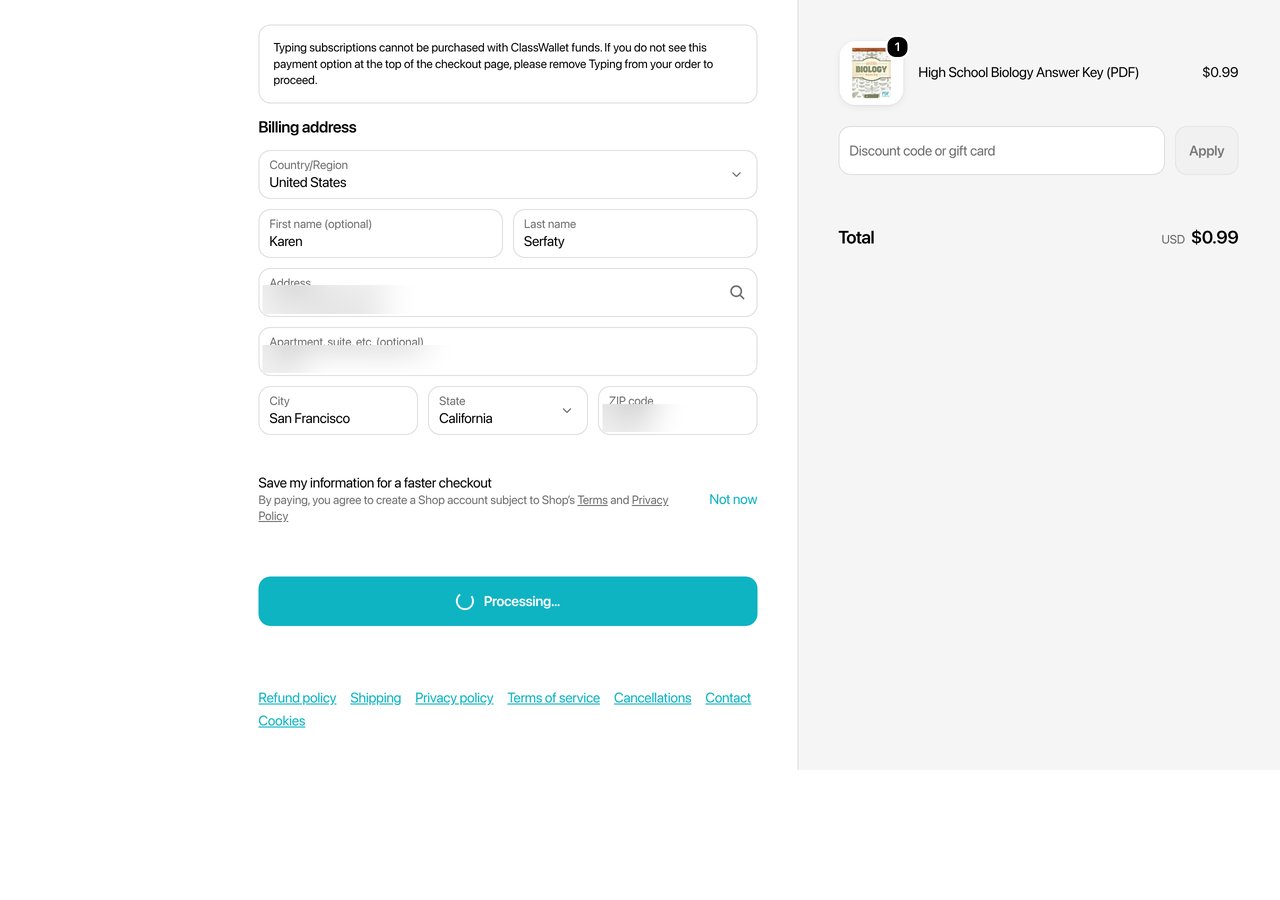
2. Open the checkout
Two things matter before the agent types anything. Create the context with service workers blocked, because a service worker owns requests Playwright cannot see, and the card request is one of them. And dismiss the store’s cookie notice yourself, because it sits over the checkout button.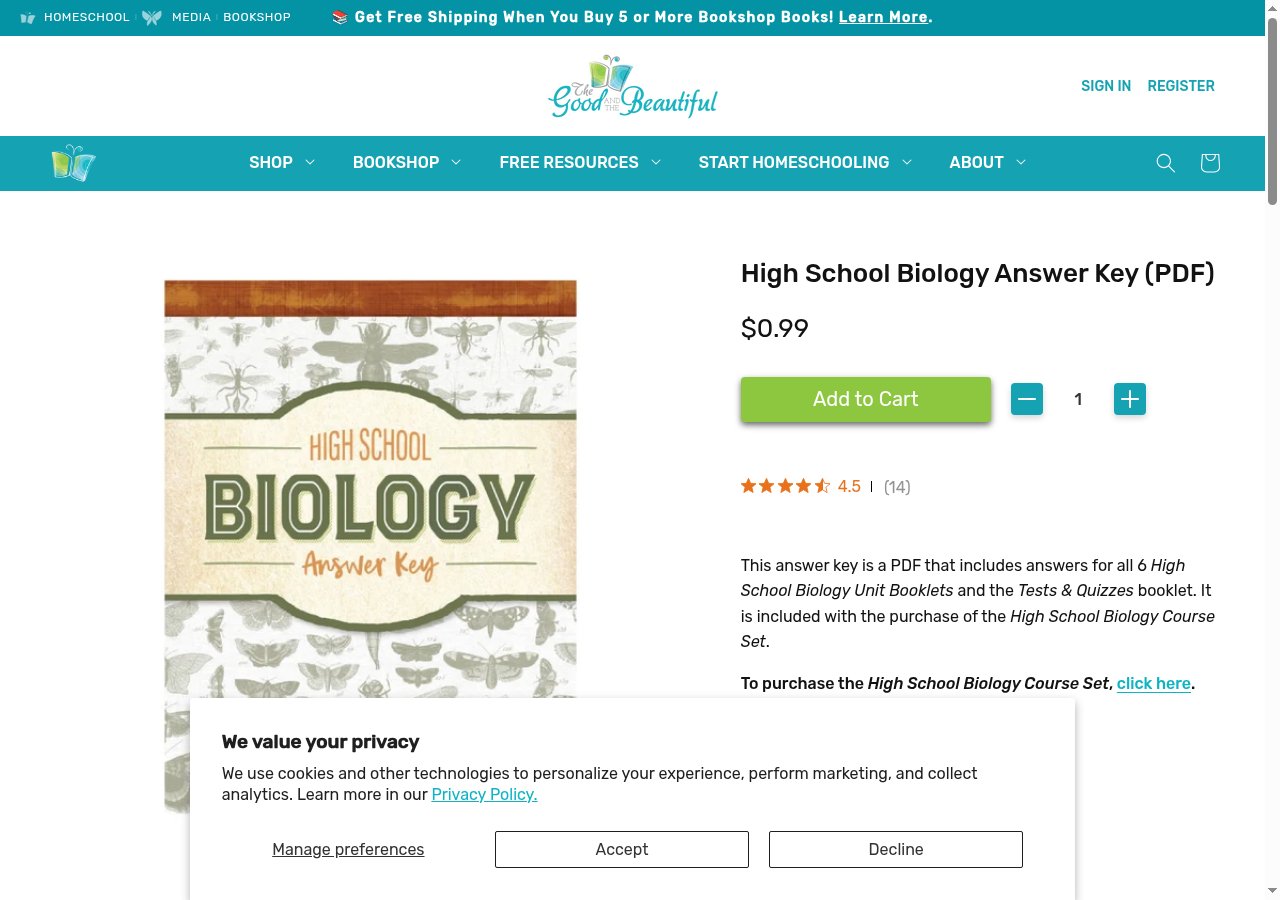
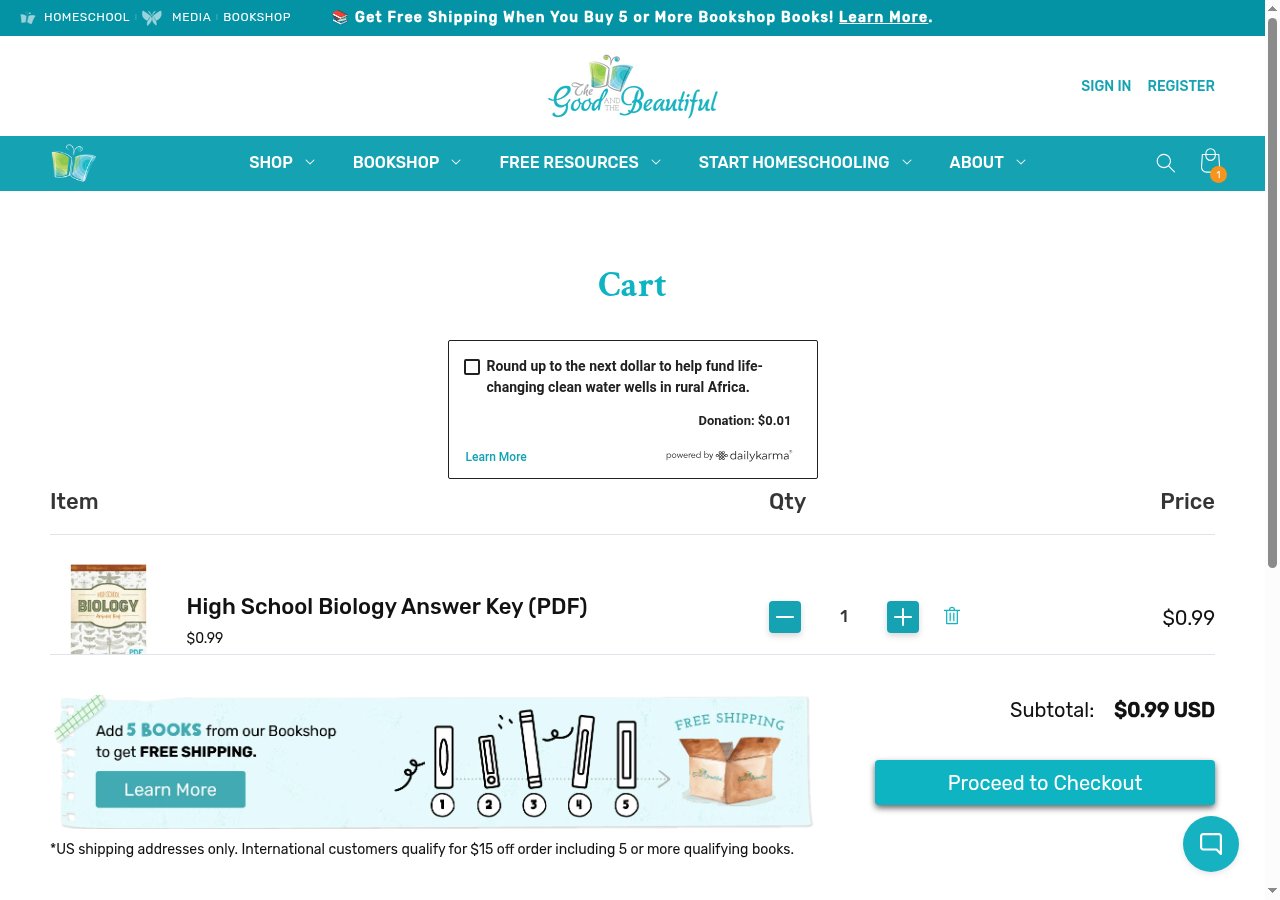
/checkouts/cn/<token>/en-us. A store with Shop Pay sends the cart permalink to shop.app first; the cart page’s own checkout button lands on the store’s checkout, which is where the SDK works.
3. Fill the checkout
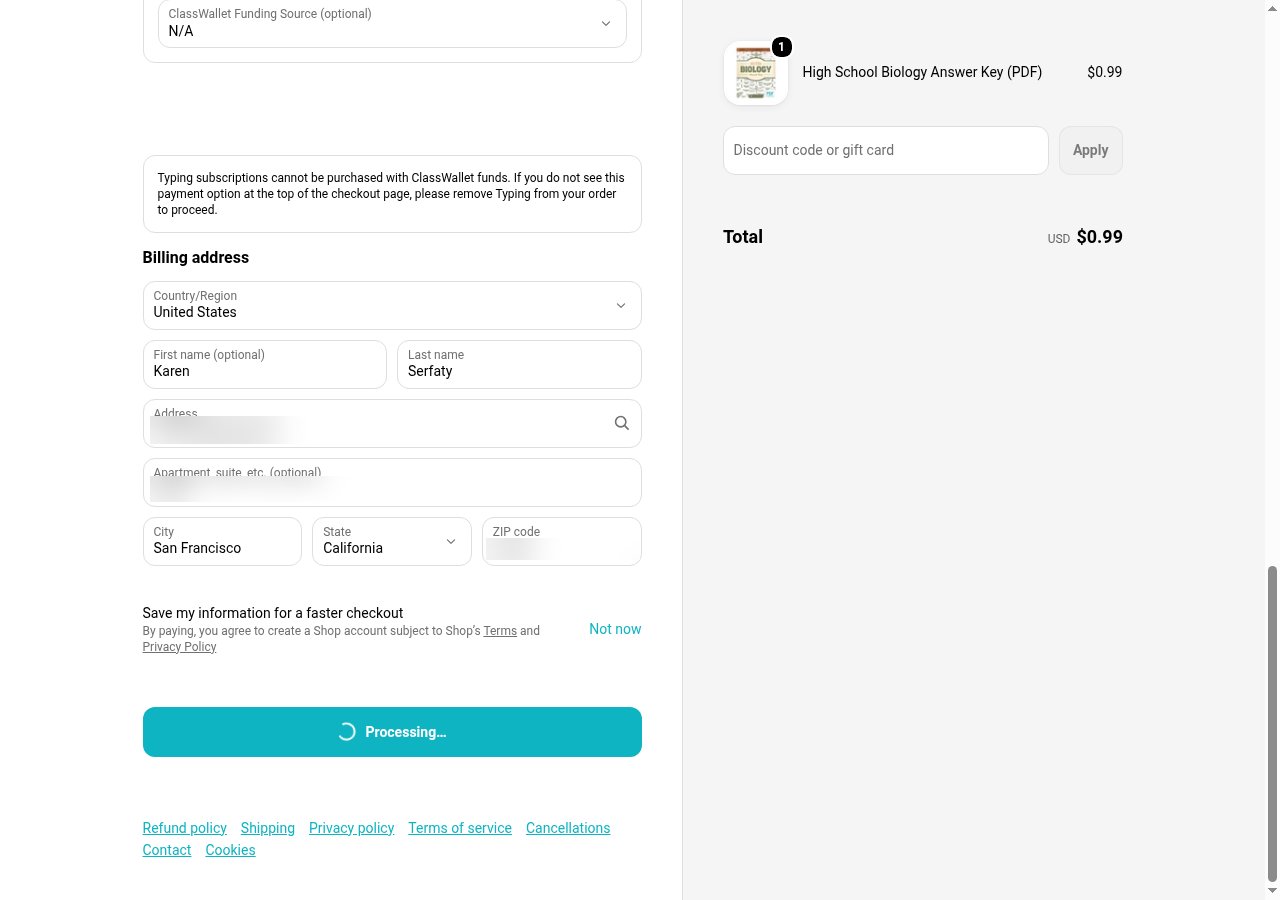
The checkout is one page. Fill the contact email, choose the credit card payment method, and fill the billing address. Shopify recomputes tax for the address, so read the total after the address settles, not before: the estimate before the address said $1.06, and California charges no tax on a digital product, so the total the user approved was $0.99. The amount you pass is the amount the approval shows the user. Shopify’s card request carries no total of its own for the SDK to compare it against, so wait until the order summary has stopped changing before you read it, and read it again right before Pay now if anything on the page changed.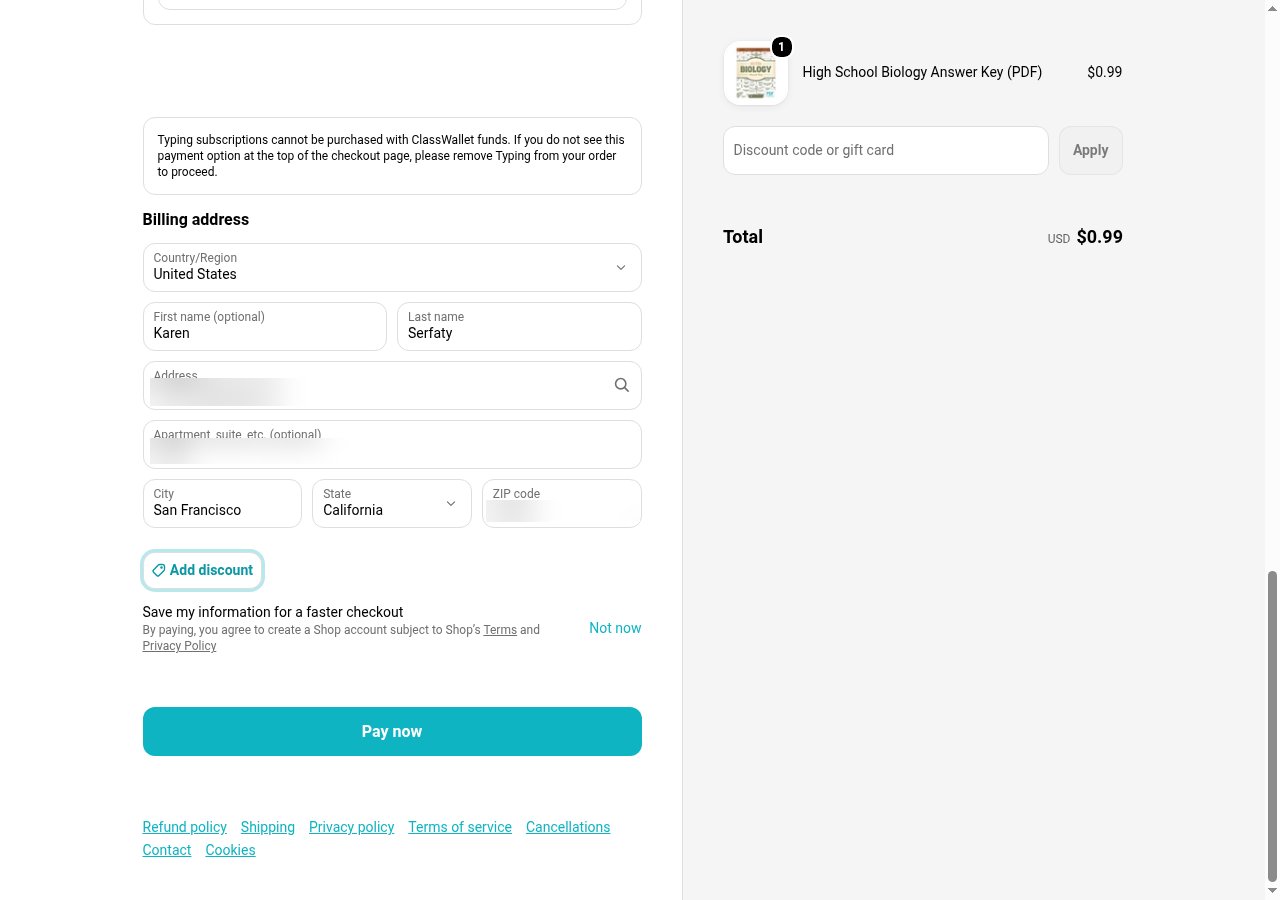
4. Attach before the card form
Attach once the billing address is in and before anything touches the card fields. The call is the one on your browser’s integration page, with the parts a real purchase needs: the total you just read, the time the user gets, and a merchant result reader.sendToUser is yours: whatever already reaches the user, such as the thread your product has with them. The link opens only for the cardholder it is bound to, and it still goes to the user and nowhere else. Never hand it to the agent or log it where the agent reads.
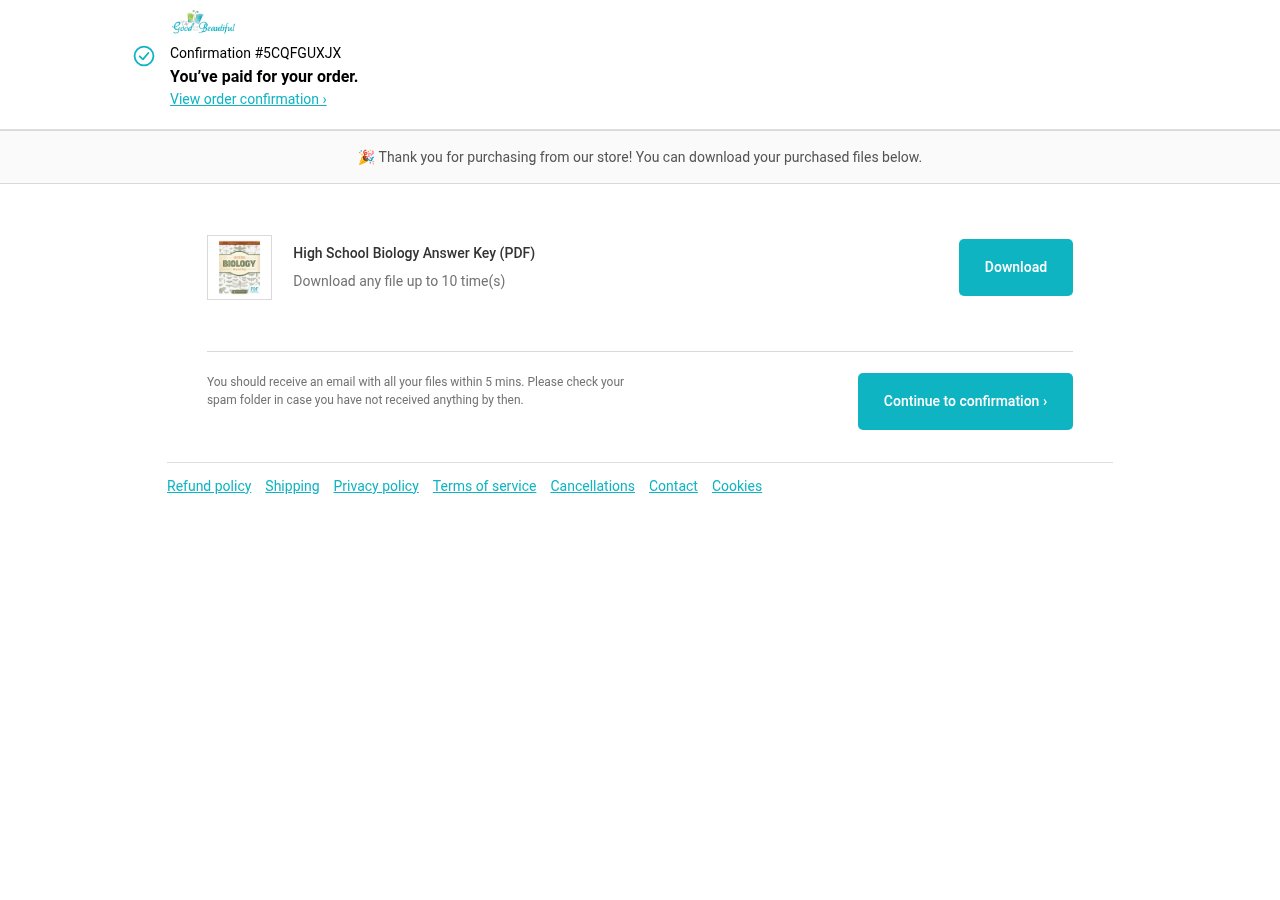
resolveMerchantResult reads the merchant’s answer, not the processor’s. Shopify’s thank-you page says Confirmation # and the number, then “You’ve paid for your order.” The resolver reports completed only with that number in hand; the thank-you URL alone, or the page before the number paints, is pending. The SDK never clicks Pay for you, and neither should a retry of yours.
Leave requireMerchantResult off for a Shopify checkout. That option holds every further card request until you reconcile, and Shopify sends more of them right after the real card goes through; with the hold on, the SDK blocked eleven of them in two seconds and the page sat on “Processing…” until the browser was deleted. Nothing was charged, and nothing was bought either.
5. Pay with a placeholder card
Shopify renders each card field in its own iframe oncheckout.pci.shopifyinc.com. The iframes are named card-fields-number-…, card-fields-expiry-…, card-fields-verification_value-… and card-fields-name-…; the suffix changes per page load, so match on the prefix. Each iframe holds a hidden honeypot input ahead of the real field; take the visible one, or the number lands in a field Shopify ignores. Type any of Stripe’s published test cards; the docs keep the number out of the page and the script reads it from PLACEHOLDER_CARD_NUMBER. The real card never enters the browser.
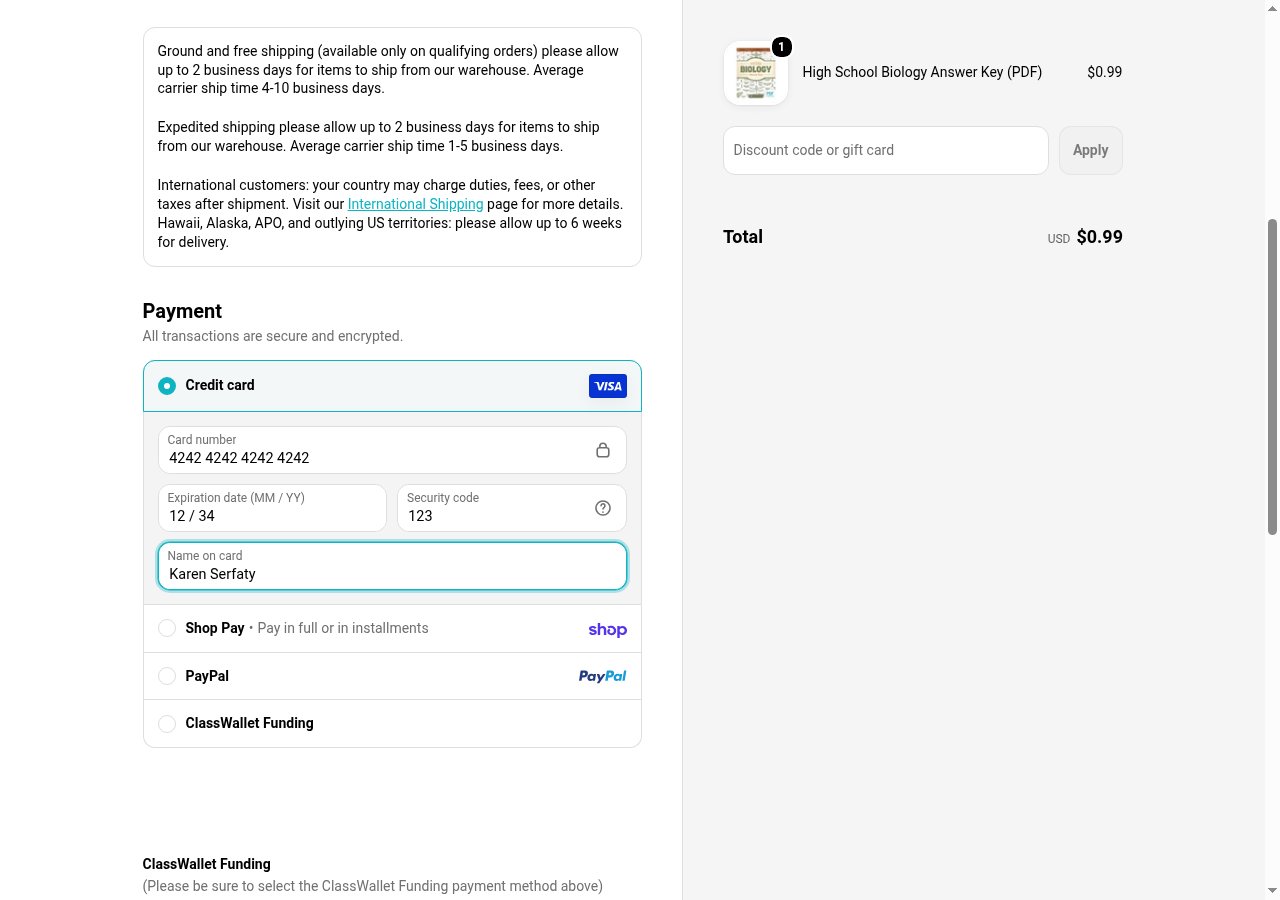
checkout.pci.shopifyinc.com/sessions, the SDK pauses that request, and onApprovalUrl fires with the link. The button reads “Processing…” and stays that way until the user decides; they have 15 minutes.
6. Deliver the approval link
onApprovalUrl hands your code the link. Nothing happens until a person opens it. One run of this guide printed the link to the terminal and nothing else; nobody was reading the terminal, and this is what the SDK printed fifteen minutes later:
expired afterwards, with no replay and nothing charged. The page sat on “Processing…” the whole time, and Shopify never saw a card. The SDK does not name that state expired: it reports outcome_unknown with the reason authorization_poll_failed, and the loop in step 8 has to confirm the expiry and end the run, or it polls a page that will never change. The first Browser Use run of this guide ended the same way with the link delivered but the user away from the phone; same output, same result. Make the delivery part of the run. The companion script runs a shell command with the link in APPROVAL_URL when APPROVAL_LINK_COMMAND is set; in your product it is whatever already reaches the user.
7. Expect a second approval
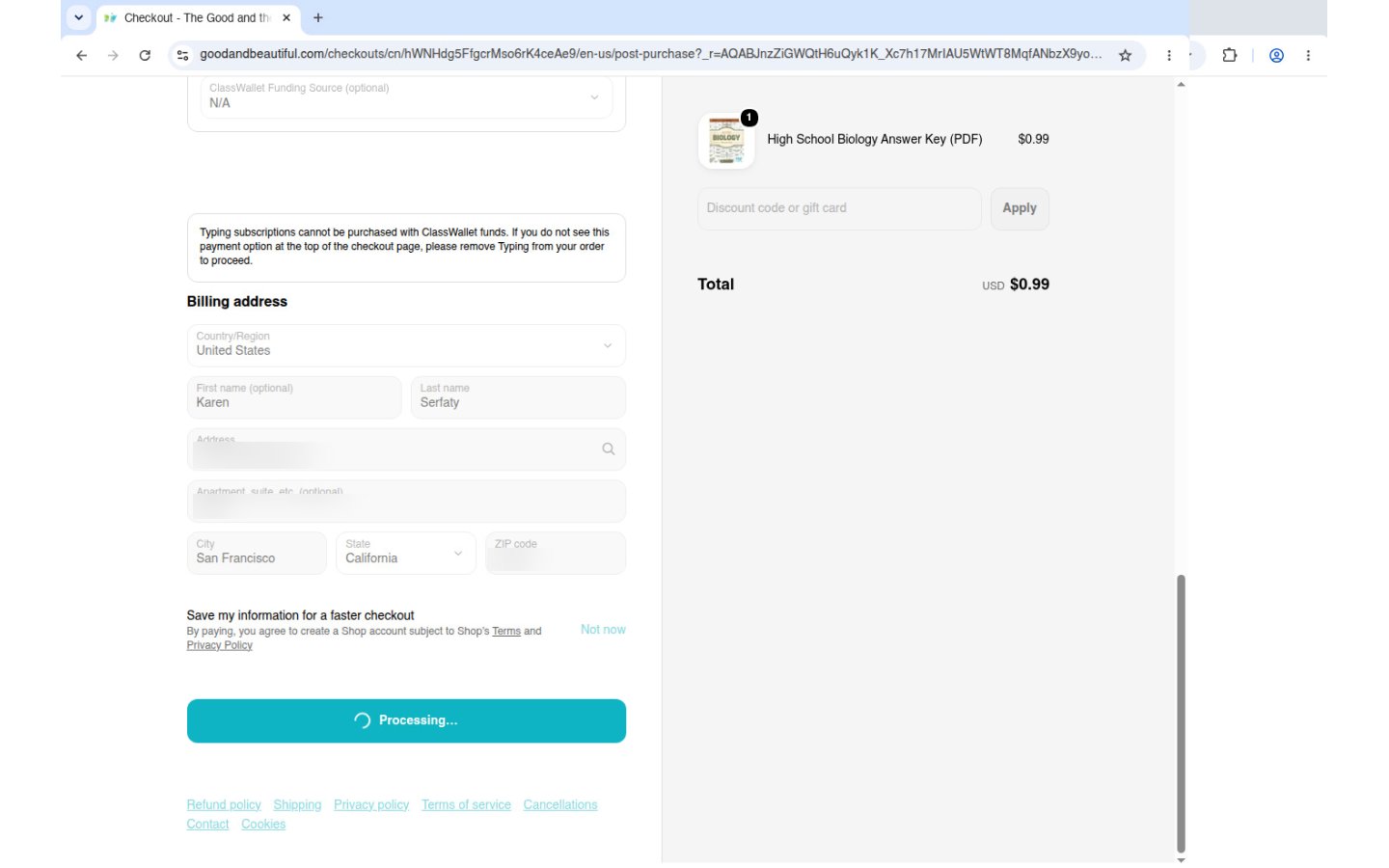
The user sees the merchant and the amount on the approval page and confirms with Face ID. Their device sends the real card to Shopify’s card session endpoint and reports the response; the SDK replays it into the paused request, and the checkout continues as if the browser had sent the real card. On the Kernel and Browser Use runs that was the end of it: on Kernel, eighteen seconds from click to approval, then three minutes of Shopify finishing the order; on Browser Use, the order confirmed thirteen seconds after the approval. On the Browserbase, Anchor and local Chrome runs Shopify asked for the card a second time, two seconds after the replay. This is the Browserbase run:- A second
awaiting_approvalafter anauthorizedis not an error. Tell the user that the store asked again and that it is the same purchase, and deliver the new link the same way. - Do not click Pay again, and do not start a new checkout. The second request came from the page you already have.
- Keep the browser through it. A hosted session stays up on its own; your own browser stays up only while your process does.
user_id, adds the card, and the approval link works.
8. Confirm the order
Once the state turns toawaiting_merchant, wait for the thank-you page and reconcile. End the browser when the result is completed, failed or declined, or when a card request the user declined or let expire ends the run. A pending or outcome_unknown result after a card was replayed means the merchant has not answered yet, and the page is where that answer appears, so the browser stays up and you reconcile again before you decide anything. Five rules for the loop:
- Read
getState()first and stop ondeclined,timed_outorcancelled. - Stop on an approval nobody gave, once the authorization confirms it.
outcome_unknownwithauthorization_poll_failedwhile no card was ever replayed in this run means the SDK lost track of the approval; the reason is the same for an approval that expired and for a network error while the approval was still open. Retire the approval and read the authorization:expiredordeclinedwithreplay_attempted: falseends the run with nothing charged. Any other answer is unknown, not expired: an authorization that readsapproved, orexpiredwithreplay_attempted: true, means a card may have reached Shopify while the SDK was not listening. If an earlier card request in the same run was approved, do not stop there at all: Shopify has seen a card, so the outcome is the merchant’s to tell. - While a card request is paused on a new approval, the state is
awaiting_approvalandreconcile()has nothing to read yet, so wait rather than call it. - Never give up on a clock of your own: a purchase that is still
pendingafter an hour is still a purchase. - A hosted session has a clock you do not own. Kernel’s ends at
timeout_secondsof inactivity, Browserbase’s attimeout, Browser Use’s attimeout, Anchor’s atmax_durationoridle_timeout. Set the limit well past the 15 minutes the user gets plus the minutes Shopify takes, and when the session ends anyway, stop with the purchase unknown and read the store’s record instead of the page.
awaiting_approval after the poll failed is a live link in the user’s hands with nothing listening for it. retireApproval cancels it and reads it back until Get an authorization no longer says awaiting_approval; a cancel that fails is retried. The attempt is bounded by the approval’s own life: an approval lives 15 minutes, so after 16 the link is dead whether or not the read ever answered, and a read that never answered leaves the result unknown. The run then goes on to the store’s record and to closing the browser instead of waiting on an API that is not answering. The status alone is not enough to call the run uncharged: replay_attempted says whether a device sent the card, and only false rules a charge out. On the first Browser Use run the read returned expired with replay_attempted: false, and on the run that bought the PDF approved with replay_attempted: true.
findOrderInStoreRecord is yours, because the record is the store’s: Shopify emails an order confirmation to the buyer’s address within seconds of the charge, and the order status page says the same. The Anchor tab below is a run that needed it. Agentcard’s side of the story is the authorization: Get an authorization says whether the card was replayed and what the processor reported, and the checkout_authorization.expired webhook reports an approval nobody gave. Neither replaces the store’s record for whether an order exists. A purchase that is still unknown is reported to the user as unknown; a new checkout starts only after the store confirms there is no order.
endBrowser is the one line that differs per browser, and each tab shows what its run printed at the end.
- Kernel
- Browserbase
- Browser Use
- Anchor
- Your own browser
timeout_seconds of inactivity, which is the right thing when the merchant has not answered: the page is still there to read.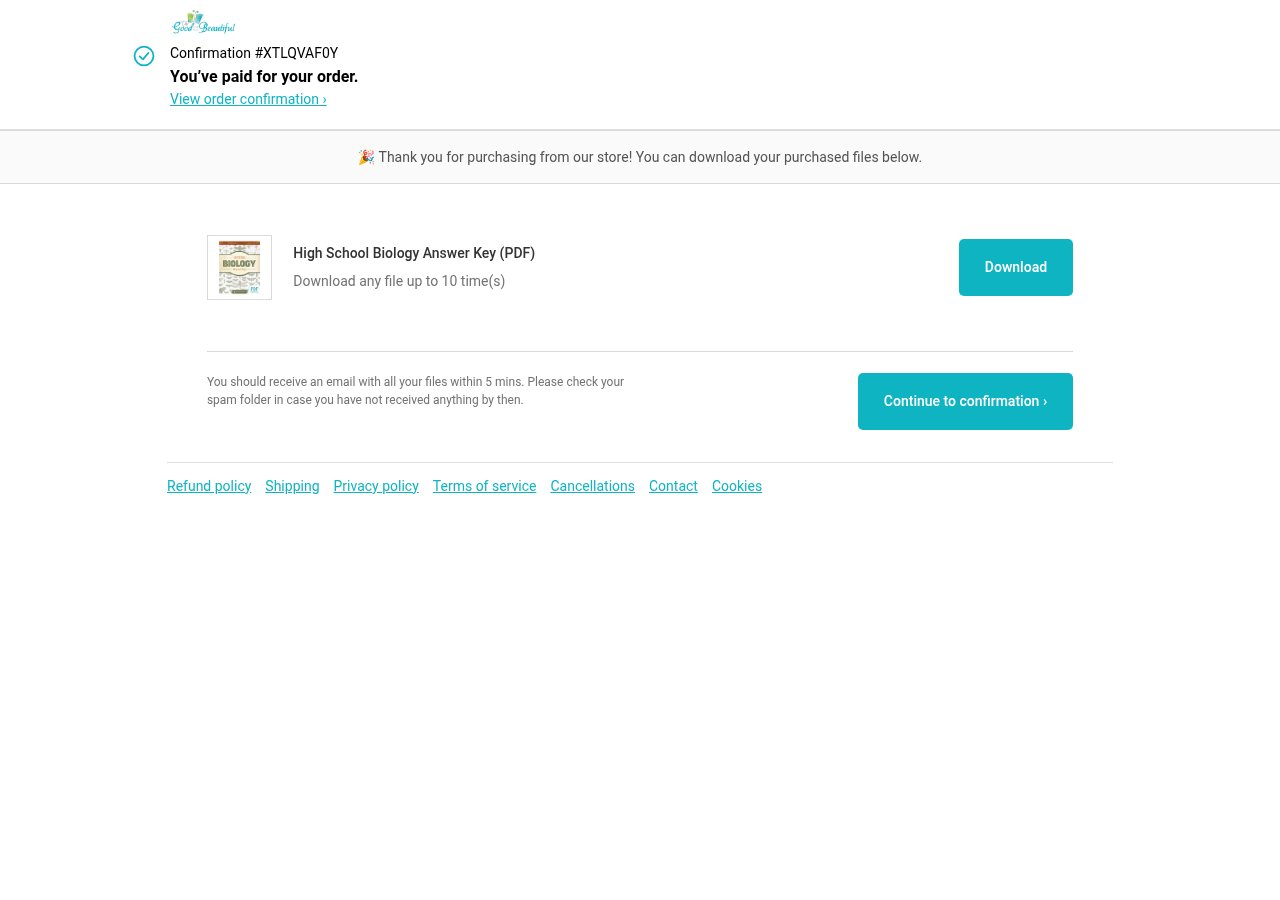
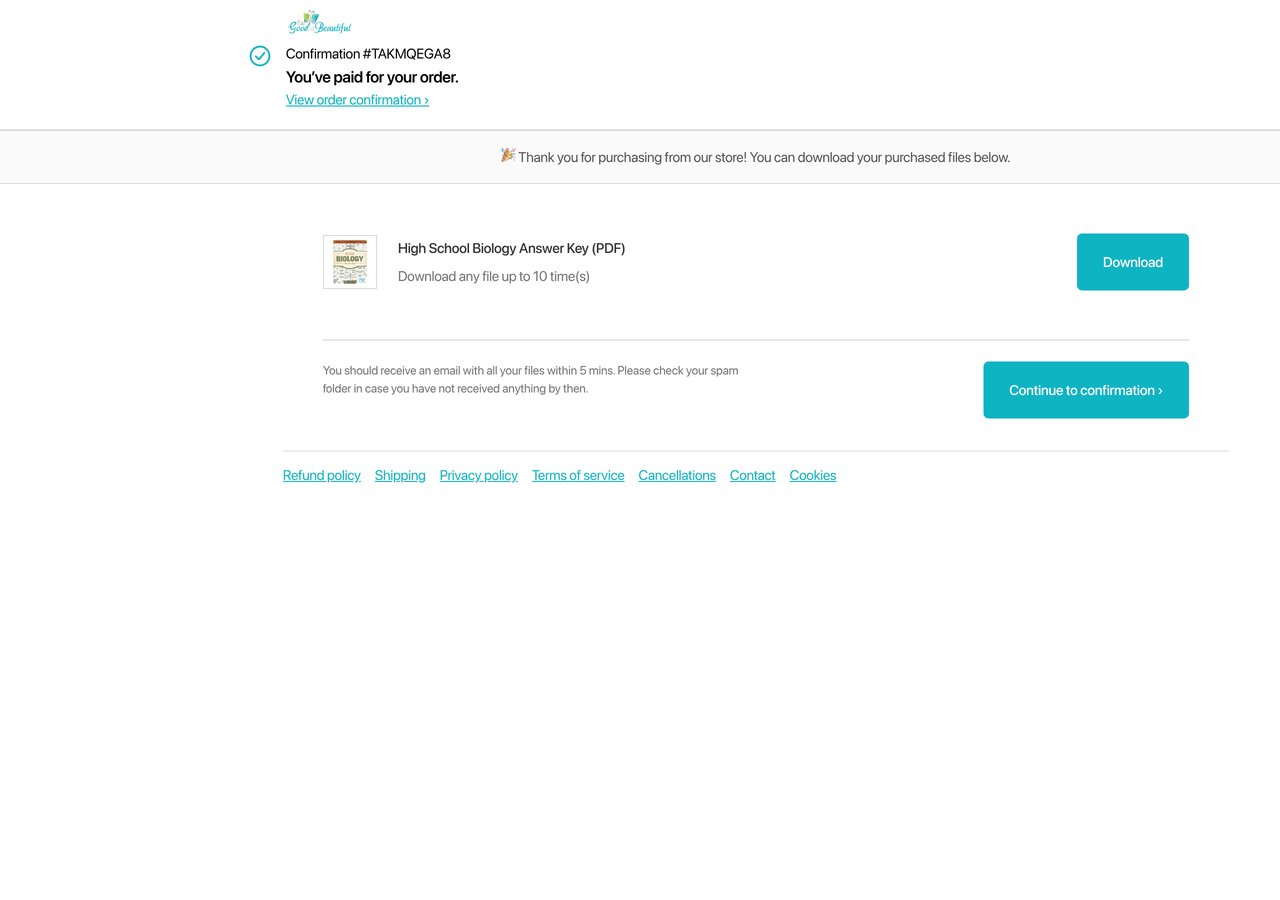

completed with a confirmation number is the only outcome you report as a purchase. pending and outcome_unknown mean keep the browser and look again; a missing receipt is not a failed payment, and clicking Pay again can charge twice. declined means the user said no or the processor refused; nothing was charged.
Run it
The whole run is one file in tiny-agent-company/kernel-shopify-purchase, the script every tab of this guide was captured from.BROWSER picks the browser; the rest of the script is shared.
APPROVAL_LINK_COMMAND and prints it; everything else is automatic, and a screenshot of every step lands in shots-<browser>/. HEADED=1 BROWSER=local npm run buy shows the local window.
Handle a run that stalls
The states in the table are thestatus values onStateChange prints, in the shape state=<status> reason=<reason>.
Where to go next
- Completing a purchase for the webhooks that tell your server the same story.
- Kernel, Browserbase, Browser Use and Anchor for each provider’s own integration, including the ones where the provider intercepts the card at its network edge and no SDK is attached.
- Your own browser for the raw CDP level and for doing your own interception.